8.5 The Pizza Project - 6 Interactive LessonsQuick View
keyffsmyff

8.5 The Pizza Project - 6 Interactive Lessons

(0)
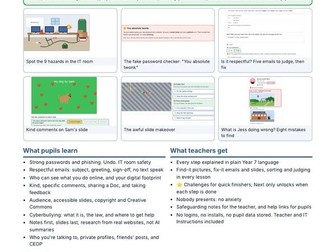
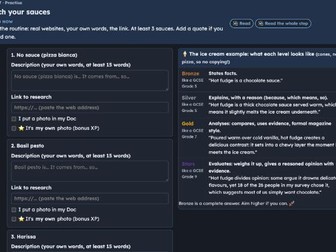
Year 8 pupils become junior food journalists and write the ultimate pizza report in Google Docs. They research, run a survey, chart the results and use AI as a critical friend without letting it do the work. One interactive page teaches the whole unit, so a non-specialist can teach it with confidence. An email arrives from their new editor: pupils have been hired as junior food journalists. Over six lessons they write a magazine-style report on pizzas from around the world, covering bases, sauces and toppings. This is the Year 8 project that brings everything together before GCSE: Google Docs skills (7.4): headings, a contents page, quotes, images, headers and page numbers. AI used properly (7.6): You are the Author, AI is the Assistant. The Brainstorm Buddy gives ideas, and the Librarian (a search engine) finds real facts on real websites. In lesson 4, AI becomes a critical friend that gives feedback rather than writing for them. Charts from data (8.3): pupils build their own Google Forms survey, turn the results into a chart, then write about what it shows. What is in it: One web page that runs beside the pupil’s own Google Doc. It reads aloud, guides every step, and only unlocks Next when the step is done. A writing ladder (Bronze, Silver, Gold) linked to GCSE grades, with worked examples, so pupils can see how to move up. A “you should be here” checkpoint at the end of every lesson, so nobody falls behind without anyone noticing. A recap starter at the beginning of every lesson. Stretch tasks for the fastest: Aim Higher, the Great Debates, and Weird Pizzas and the Future. A final audit and polish before they hand in. A running joke about pineapple on pizza, and a big opening question: is a pizza a sandwich? Built for real classrooms: No logins, no installs and no pupil data stored. Pupils copy their work into their own Google Doc. Works on shared computers. It is a single HTML file that opens in Chrome. SEND is never a barrier: read aloud, voice typing, lifelines and prompts. Teacher Instructions and IT Instructions are included. These lessons are not better than a good teacher. But they are better than no teacher. More from keyffsmyff: 8.1 Computing Systems (free), 8.3 Spreadsheets, and Year 8 Python (19 lessons). Written by Keith Smith, Head of Computer Science at Chenderit School. If it helps you, please leave a review.
7.5 Coding with Scratch 2 - 6 Interactive lessonsQuick View
keyffsmyff

7.5 Coding with Scratch 2 - 6 Interactive lessons

(0)
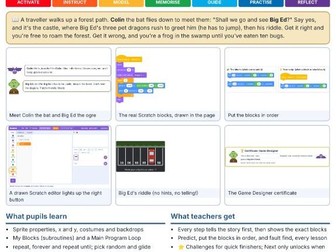
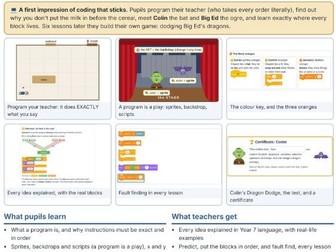
Year 7 pupils build a whole game in Scratch, one scene at a time, and learn to code properly along the way. Six interactive lesson pages guide them step by step, so a non-specialist can teach the unit with confidence. The story: a traveller walks up a forest path. Colin the bat flies down to meet them: “Shall we go and see Big Ed?” Say yes, and it’s the castle, where Big Ed’s three pet dragons rush to greet him (he has to jump), and then his riddle. Get it right and you’re free to roam the forest. Get it wrong, and you’re a frog in the swamp until you’ve eaten ten bugs. The six lessons: Setting the Scene: sprite properties, x and y, My Blocks, a repeat loop, variables, join, and checking the answer with OR The Castle: broadcast and when I receive, pick random, glide, touching, and the space-bar jump The Riddle: how every scene starts, “For all sprites”, uploading a backdrop, and the fork in the road The Swamp: arrow keys, falling bugs with repeat until, a score, and the way out On Your Own: plan, build and test your own adventure, from 11 ideas based on the Scratch Coding Cards Finish and Share: bug hunt, play a friend’s game, share to your class studio, your unit test, and a certificate What is in it: Every step tells the next part of the story first, then shows the exact Scratch blocks, drawn in the real Scratch colours A drawn Scratch editor that lights up the button or menu pupils need Predict first, put the blocks in order, and fault find in every lesson Challenge steps in every lesson to stretch the fastest Next only unlocks when each step is done A guide to Scratch Teacher Accounts: you make the pupil accounts and reset forgotten passwords yourself Teacher Instructions and IT Instructions Built for real classrooms: No logins, no installs and no pupil data stored. Pupils build on the free Scratch website, beside the lesson page. Each lesson is a single HTML file that opens in Chrome. No webcams needed. SEND is never a barrier: read aloud, the story first, clear pictures of every block, and lifelines. These lessons are not better than a good teacher. But they are better than no teacher. More from keyffsmyff: 8.1 Computing Systems (free), 7.4 Google Docs, 7.6 AI: The Lazy Trap, 8.3 Spreadsheets, 8.5 The Pizza Project, and Year 8 Python (19 lessons). Written by Keith Smith, Head of Computer Science at Chenderit School. Scratch is a project of the Scratch Foundation; these lessons are not made or endorsed by it. If they help you, please leave a review.
7.6 AI - 6 Interactive LessonsQuick View
keyffsmyff

7.6 AI - 6 Interactive Lessons

(0)
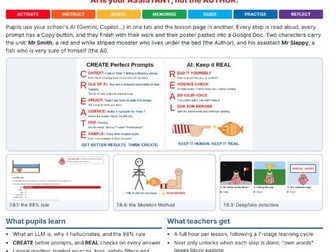
Year 7 pupils learn to use AI well: what it really is, how to ask it better (CREATE), how to check what it says (REAL), and how to use it without falling into the Lazy Trap of letting it do the work. Six interactive lesson pages, built so a non-specialist can teach the unit with confidence. Pupils use your school’s AI (Gemini, Copilot or whichever you allow) in one tab and the lesson page in another. Every prompt has a Copy button, every step can be read aloud, and each lesson ends with their work and their poster pasted into their own Google Doc. Two characters carry the unit: Mr Smith, a red and white striped monster who lives under the bed (the Author), and his assistant Mr Slappy, a fish who is very sure of himself (the AI). AI is your Assistant, not the Author. The six lessons: The Lazy Trap: what an LLM is, hallucinations (meet Professor Jargon McFluff), the 98% rule, and what AI is brilliant or pants at Garbage In, Garbage Out: the CREATE formula, Prompt Golf, Pilot and Co-Pilot, and why there is no AI in the exam hall The Fact Checker: lateral reading, trusted sources, bias, safety filters, deepfakes and the social media highlight reel The Brainstorm Buddy: the Skeleton Method. AI helps you plan, you write the muscle in your own voice The Editor: you are the Captain, AI is the Navigator. Find your own mistakes, use AI as a coach, not a cheat The Turing Test: prove you are human, then your unit test, What Went Well and Even Better If, and a certificate What is in it: CREATE and REAL posters at the start and end of every lesson, and at the top of every pupil’s notes Copy buttons for every prompt, so the time goes on thinking, not typing Answer boxes that block pasting where pupils must use their own words, and spot when writing “could have been written by a robot” Next only unlocks when each step is done A Challenge step in every lesson to stretch the fastest Set your school’s AI and your school’s name once: the pages use them everywhere Teacher Instructions and IT Instructions included Built for real classrooms: No logins, no installs and no pupil data stored. The pages contain no AI themselves. Works on shared computers. Each lesson is a single HTML file that opens in Chrome. SEND is never a barrier: read aloud, voice typing, lifelines and prompts. If the AI behaves differently on the day, the lesson shows what it said when Mr Smith tried it, so the lesson still works. These lessons are not better than a good teacher. But they are better than no teacher. More from keyffsmyff: 8.1 Computing Systems (free), 7.4 Google Docs, 8.3 Spreadsheets, 8.5 The Pizza Project, and Year 8 Python (19 lessons). Written by Keith Smith, Head of Computer Science at Chenderit School. If it helps you, please leave a review.
7.4 Using Google Docs - 6 Interactive LessonsQuick View
keyffsmyff

7.4 Using Google Docs - 6 Interactive Lessons

(0)
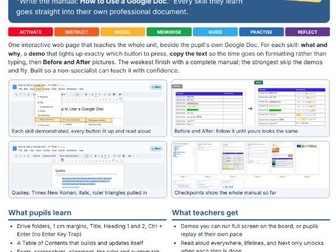
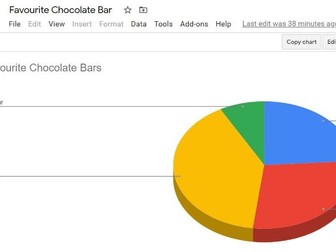
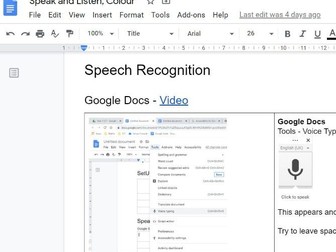
Year 7 pupils write their own manual, How to Use a Google Doc, learning every skill as they go. One interactive page teaches the whole unit beside the pupil’s own Google Doc, so a non-specialist can teach it with confidence. For every skill the page explains what it is and why it matters, then runs a demo that lights up exactly which button to press. Pupils copy the text in, so their time goes on formatting rather than typing. Then they check their work against Before and After pictures. The weakest finish with a complete, professional manual. The strongest skip the demos and fly. The six lessons: Titles, headings and a contents page Alignment, the ruler and tab stops Images Quotes and surveys Charts, headers and footers Wrap up and the test What pupils learn: Google Drive folders, 1 cm margins, Title, Heading 1 and Heading 2 Page breaks with Ctrl + Enter instead of pressing Enter over and over A Table of Contents that builds and updates itself Fonts, screenshots, superscript and subscript, alignment, the ruler and custom tab stops Insert Drawing, wrap text, cropping and exact image sizes Quotes and plagiarism, a Google Forms survey and its chart Charts linked to Google Sheets, headers and page numbers What teachers get: Demos you can run full screen on the board, or pupils can replay at their own pace Read aloud everywhere, lifelines, and Next only unlocks when each step is done A checkpoint at the end of every lesson, and a final checklist before the test A finished example manual, so everyone knows what “done” looks like Teacher Instructions and IT Instructions Built for real classrooms: No logins, no installs and no pupil data stored. Pupils work in their own Google Doc. Works on shared computers. It is a single HTML file that opens in Chrome. SEND is never a barrier: read aloud, voice typing, lifelines and prompts. The Google screens in the lesson are drawings, so they work even when your school blocks things. These lessons are not better than a good teacher. But they are better than no teacher. More from keyffsmyff: 8.1 Computing Systems (free), 8.3 Spreadsheets, 8.5 The Pizza Project (which uses these Google Docs skills), and Year 8 Python (19 lessons). Written by Keith Smith, Head of Computer Science at Chenderit School. If it helps you, please leave a review.
8. 2 Year 8 Python: 19 Interactive Lessons with a Built-in Python Editor (KS3)Quick View
keyffsmyff

8. 2 Year 8 Python: 19 Interactive Lessons with a Built-in Python Editor (KS3)

(0)
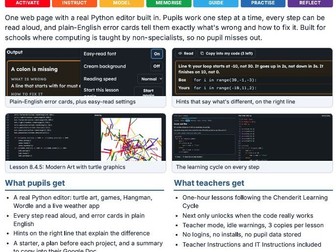
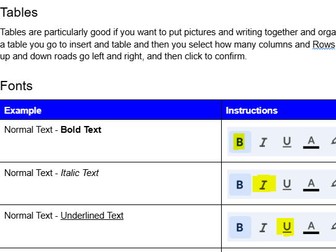
A complete Year 8 Python course in one web page. Pupils code in a real Python editor, follow one step at a time, and get plain-English help when things go wrong. No logins, no installs. 19 one-hour lessons that teach themselves. Every lesson runs in a single web page with a real Python editor built in, so pupils can start coding straight away in Chrome. Built for schools where computing is taught by non-specialists, so no pupil misses out. What pupils get A real Python editor: turtle art, games, a text adventure, Hangman, Wordle and a live weather app Every step read aloud, and error cards in plain English: what’s wrong, and how to fix it Hints that point at the right line and explain the difference (“your loop starts at -10, not 30”) A starter to recall last lesson, a plan before each project, and a summary to copy into their Google Doc What teachers get Lessons that follow a 7-stage learning cycle: Activate, Instruct, Model, Memorise, Guide, Practise, Reflect Next only unlocks when the code really works, so no skipping ahead Teacher mode, idle warnings, and 3 copies per lesson No logins, no installs, no pupil data stored, so it works on shared PCs Teacher Instructions and IT Instructions included The 19 lessons 8.2 Introduction: In and out · Loops · Cutting strings · Data · Functions 8.4 Projects: Multiples · Guess the Number · Magic 8 Ball · Turn Turtle · Modern Art · Turtle Recall · FizzBuzz · Rock Paper Scissors 8.6 Bigger projects: The Big Adventure · Hangman · Wordle · Secret Agents · OXO · The Weatherman In the download: the lesson page (one HTML file), a flyer, Teacher Instructions, IT Instructions and credits. Put it on a Google Site, your VLE, or a shared drive. Made by Keith Smith, Head of Computer Science at Chenderit School, built in his own time for his Year 8 classes. If it helps you or your pupils, please leave a review. It tells me what to build next.

8.3 Spreadsheets: 6 interactive lessons (KS3)Quick View
keyffsmyff

8.3 Spreadsheets: 6 interactive lessons (KS3)

(0)
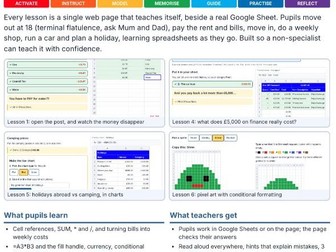
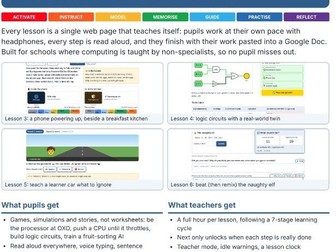
“You’re 18 and you’ve moved out. Can you afford it?” Mum and Dad have served a Notice to Quit (terminal flatulence) and gone on a cruise. Over six lessons, your pupils move into a flat in Banbury, pay the rent and bills, move in, do a weekly shop, run a car and plan a holiday. They learn spreadsheets the whole way through, in their own Google Sheets workbook. Each lesson is a single web page that teaches itself, beside a real Google Sheet. Pupils work at their own pace with headphones, and every step can be read aloud. Built so a non-specialist can teach it with confidence. The six lessons Weekly Budget: cell references, SUM, * and /, and turning bills into weekly costs Move-In Day: =A3*B3, the fill handle, currency format and conditional formatting The Weekly Shop: unit prices, part of a pack, IF, and linking sheets Transport: hyperlinks, trusting gov.uk over adverts and AI, loans and interest, and “bangernomics” Holidays and Charts: pie, bar and line charts, asking AI for ideas and checking its facts, and chart crimes Pixel Art: conditional formatting turns numbers into 8-bit pictures (a short lesson, with room for your unit test) What pupils get Real prices: rent, council tax, energy, Tesco, car insurance and more Games and challenges: Higher or Lower, Battleships, the post arriving one envelope at a time, loan sliders, chart crimes, pixel art A choice: build in Google Sheets with the page checking their answers, or on the page and copy it across at the end Read aloud, voice typing, hints that explain mistakes, 3 lifelines a lesson, and XP out of 100 Copy my work: everything they did, pasted into a Google Doc in one click What teachers get A full hour per lesson following a 7-stage learning cycle (Activate to Reflect), with the minutes for each stage shown Next only unlocks when each step is really done A “Go to Reflect” reminder 5 minutes before the end, and a two-part Reflect in every lesson Teacher mode to jump to any step No logins, no installs and no pupil data stored Teacher Instructions and IT Instructions (with the websites to allow) included Also by me: Year 8 Computing Systems (8.1), free on TES. Coming soon: Year 8 Python and the Pizza Project (8.5). If these help you or your pupils, please leave a review. It makes a real difference and tells me what to build next. Written by Keith Smith, Head of Computer Science at Chenderit School.
GCSE Foundation Maths - Revision BookletsQuick View
keyffsmyff

GCSE Foundation Maths - Revision Booklets

(3)
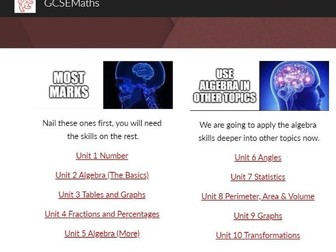
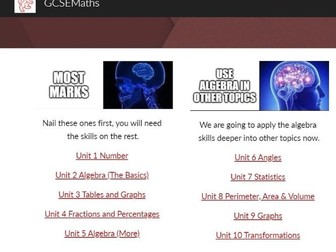
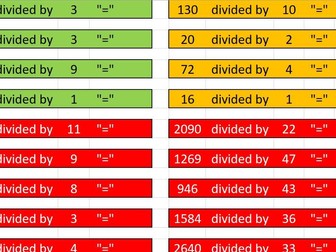
I started writing these short revision document for each unit as a help to those with lower literacy skills and those who are unlikely to read too much from a commercial book. My background is DT/Electronics and definitely not English. I am not precious about any of it so please email me with additions/alterations/errors so I can correct and re-share. These sit literally side by side on my Maths website with a similar document linking to resources for each section. https://sites.google.com/view/gcsemaths/home
8.1 Computer Science - Interactive Lessons for Non-SpecialistsQuick View
keyffsmyff

8.1 Computer Science - Interactive Lessons for Non-Specialists

(0)
Six standalone interactive lessons, based on the NCCE scheme of work and developed over the years. Pupils work in an interactive shell, then copy their work into a Word or Google Doc at the end of the lesson. SEND friendly: read aloud on every step, voice typing, accessible fonts, coloured backgrounds and sentence starters. Keeps them going: pupils earn XP and have a limited number of lifelines to use in each lesson. An amber, then red, border warns inactive pupils. Teacher mode removes the “must complete each step before moving on” rule and gives unlimited lifelines. Admin: no install, no logins, no pupil data stored. Just link to it. 8.1.1 Get in Gear (What is a computer?) 8.1.2 Under the Hood (Inside a computer) 8.1.3 Orchestra Conductor (The operating system) 8.1.4 It’s Only Logical (Logic gates and binary) 8.1.5 Thinking Machines (AI and machine learning) 8.1.6 Sharing (Open source, plus the unit test) Includes Teacher Instructions, IT Instructions and full credits. Free to use. If it helps you or your pupils, please leave a review: it makes a real difference.
Diary / OrganiserQuick View
keyffsmyff

Diary / Organiser

(2)
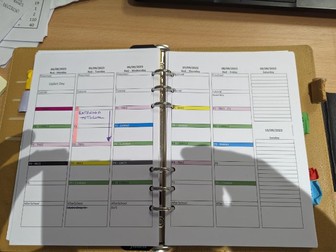
I struggled for years with a Diary and Organisers both leaving me to fill in loads of information. I came up with this spreadsheet. I type in my timetable once and a formatted diary picks up my timetable and writes it into a 2 page for 1 week diary page. Works with a 5 lesson 1 or 2 week timetable. Before printing I have to write in the first Monday of the term’s date and then the spreadsheet will fill in the rest of the dates. I can type in before and after school duties and clubs, then they will print out on each of the rest of the pages. Print this out as a booklet and away you go. I split it and put it in a filofax or just Print it out onto A4. Here you will get a copy of the spreadsheet and a video of me talking through the instructions of what to do. Edit July 23 I have updated this added ToDo Notes 1 page per month Diary Increased Font Size in Diary I have left my timetable in for next year just so you can see what I have done. I copy my who timetable as a picture to the front of the Diary page it is very helpful (See pics)
ICT - Painting by Numbers - Conditional FormattingQuick View
keyffsmyff

ICT - Painting by Numbers - Conditional Formatting

(1)
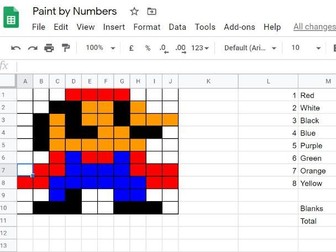
Fun activity that introduces Conditional Formating. Written for Google Docs but works as well on Excel. Set up a 10 by 10 grid that changes colour of both the background and text depending on what you set up. Instructions are step by step. An example, sheet is done. Extension task using countif to add up the numbers of each colour. I did a video to help some. https://youtu.be/cQuXENAkkn8
Year 7 - Using Google DocsQuick View
keyffsmyff

Year 7 - Using Google Docs

(0)
I used to sit in front of the class and make this document, explaining and doing and then getting the children to do it. They will end up with an instruction sheet on using Google Docs. As it becomes harder and harder to find specialist CS teachers I have made slides for others to follow and have just used the new (Jan 26) slides to Video feature, and uploaded to Youtube. I have children who need to use Google voice typing but don’t want to be the only one with headphones on. This solves that particular problem. I will be giving out the slides and the videos, i think most will use the videos with headphones (mmm quiet classroom). First lesson I will be going through the first lesson and then let them go. Note in my school we have a Learning Cycle which identifies what is going on during the lesson. I warn the kids, ohh instruction must mean you are going to have the learn this and use it again. Then when doing practice, sorry go back and learn your notes. There is a bar chart inside the image on independence levels.
Enrichment - Enlarging 1 Pt PerspectiveQuick View
keyffsmyff

Enrichment - Enlarging 1 Pt Perspective

(1)
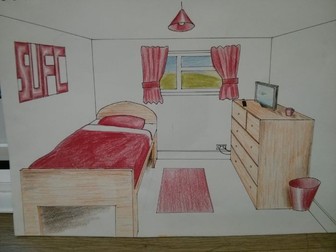
A cross over Maths and DT enrichment activity. With some Fibonacci thrown in as an extension task. Step by Step on how to draw a bedroom in 1 point perspective using the principles applied to enlargement. You will needs lots of rulers, rubbers and teach them to use light construction lines until the end.
GCSE Foundation Maths - Worksheets LinksQuick View
keyffsmyff

GCSE Foundation Maths - Worksheets Links

(0)
I have roughly and quickly have collated the wonderful resources produced by others and organised them by Edexcel Specification Point. I have not downloaded their work or am I trying to steal their thunder or clicks. If people download it it should increase their web traffic. This sits side by side with the revision notes from my website. https://sites.google.com/view/gcsemaths/home Where the documents will be updated as we go. I am not precious about these and would love to collaborate, please email me any additions you make so I can make them available for all.
Secondary Numeracy Summer WorkQuick View
keyffsmyff

Secondary Numeracy Summer Work

(0)
5 Booklets (with Answers) with 3 pages of questions per week. S2 is Year 2 NC levels TTs 1,2,5,10 plus place value S3 is Year 3 NC level TTs 1,2,3,4,5,8,10 S4 is Year 4 NC levels TTs 1 to 12 S5 is KS(ish) TT’s -12 to +12 S6 is KS4 Foundation(ish)
Arithmetic Question GeneratorQuick View
keyffsmyff

Arithmetic Question Generator

(0)
This is a spreadsheet that is set up to generate lots of different types of questions. Including 1to12 multiplication, mixed arithmetic, multiple digit addition, subtraction, division and multiplication. FDP and ordering. Press F9 and bingo a new set of sums.
KS3 Coding for Non-SpecialistsQuick View
keyffsmyff

KS3 Coding for Non-Specialists

(0)
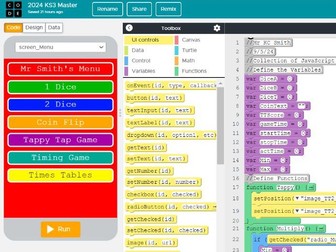
This is a set of 17 videos that walk you through a code.org JavaScript app. It has a menu screen, single and double dice screens, coin flip, Tappy tap game (From Computing First), a timer game and a times tables game. This will actually load on your phone which is amazing if you are 12 (or mid 50’s). I wrote and recorded this with non specialists in mind. Non-Specialists please remember that fault finding is a key skill so don’t feel mean telling them to rewatch the videos and sort it out themselves. In the next few months I will do 3 other Non-Specialist Sets of Materials. We do Programming 1 - Scratch - Coming Soon - 1 off lessons Programming 2 - Scratch - - Videos Comin Soon Programming 3 - JavaScript - This Scheme Programming 4 - Python - Coming Soon Please write a review if useful and feel free to feedback both insults and inspiration.
Selection of Mental Arithmatic ProgramsQuick View
keyffsmyff

Selection of Mental Arithmatic Programs

(0)
As I was looking to expand my skill set in Python I wrote some scripts that allow the user to:- select the length of time between questions select the quantity of questions Most offer 3 levels of Question. Spiral 2 Lowest (2,5,10 Times tables), Spiral 3 Mid (3,4 & 8) Spiral 4 Highest to 12 Give a countdown from 3 seconds before changing questions Show the answers at the end I then used Auto-py-to-exe to create .exe files. If you don’t trust me .exe files then let me know and I will release the python code and you can do it yourself. TIP Font Size. When you run it for the first time, right click the top title bar of the window and select settings, then select an appropriate font size. I use 28.
Computer Science Scratch StorylineQuick View
keyffsmyff

Computer Science Scratch Storyline

(0)
This is a teacher prompt to work with students when you copy to the board. I have found this method useful as our SEND students benefit from me not flicking back and forward between slides and coding screens. So I do the instruction and type in front of them. I demonstrate mine works and they then have to fault find. It is broken down into 6 lessons the first 3 are very much modeling and the last 3 freeplay with scaffold. The story is set in a magical kingdom.