Online Safety Activities Bundle | Digital Literacy | 4 Editable PowerPoints | KS1–KS2 / SENQuick View
Lessons_with_Harvey

Online Safety Activities Bundle | Digital Literacy | 4 Editable PowerPoints | KS1–KS2 / SEN

(0)
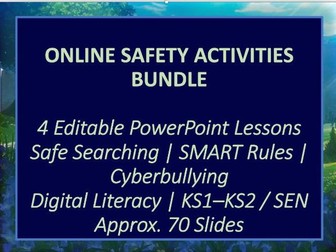
A practical, engaging collection of four editable online-safety PowerPoint activities. Pupils build essential digital-literacy skills through visual, accessible tasks involving safe image searches, recognising icons, SMART online-safety rules, personal information, cyberbullying, and safer responses to online contact. The activities use drag-and-drop tasks, matching, quizzes, scenario-based decision making, short research prompts, and reflection opportunities. They are suitable for whole-class teaching, small-group interventions, independent work, or adapted learning in primary and secondary SEN settings. This bundle includes 4 editable PowerPoint activities with approximately 70 slides in total, plus pupil reflection and teacher assessment opportunities in each resource. Safe Image Search and Fact Checking activity Safe Icons and Online Safety Quiz SMART Rules activity and quiz: Safe, Meet, Accept, Reliable, Tell Personal Information and Cyberbullying activity Drag-and-drop, matching, quiz, sorting, research, and written-reflection tasks Online scenarios involving strangers, friend requests, personal information, images, passwords, cyberbullying, and reporting concerns Opportunities to practise safe searching and basic fact checking Independent / supported pupil reflection in every activity Teacher assessment prompts, including WAT and NNT sections Fully editable PowerPoint format Approximately 70 slides across four lessons Ideal for Computing, Digital Literacy, Online Safety, PSHE, intervention groups, KS1–KS2 classes, and secondary SEN learners.
Personal Information and Cyberbullying Activity | Online Safety | KS1–KS2 / SENQuick View
Lessons_with_Harvey

Personal Information and Cyberbullying Activity | Online Safety | KS1–KS2 / SEN

(0)
A practical and engaging online-safety PowerPoint that helps pupils recognise personal information, identify cyberbullying, and make safer choices when communicating online. Pupils sort information into items that may be safe to share and information that should stay private. They work through simple cyberbullying scenarios, choose safe responses when contacted by strangers online, and explain the possible consequences of unsafe choices. The activity is designed to support discussion, independent work, and teacher-led online-safety lessons. This resource contains** 19 editable PowerPoint slides**, including a pupil reflection and teacher assessment slide. Personal-information sorting activity: safer-to-share or keep-private information Cyberbullying or not-cyberbullying scenario quiz Online stranger-message activities Safe-response choices for questions about school, location, meeting in person, and home address Familiar games and app-image matching activity Online-safety puzzle activity Written reflection prompts about unsafe online situations and possible consequences Opportunities to develop discussion, decision-making, typing, and mouse-control skills Independent / supported pupil reflection Teacher assessment section with WAT and NNT prompts Fully editable PowerPoint format 19 slides included
Functional Skills ICT Exam Preparation | Poster Creation and Image Insertion Bundle | Entry Level /Quick View
Lessons_with_Harvey

Functional Skills ICT Exam Preparation | Poster Creation and Image Insertion Bundle | Entry Level /

(0)
A practical collection of five editable Functional Skills ICT preparation activities, designed to help learners practise the core digital skills needed to create and improve posters. The tasks focus on opening files, locating images, inserting pictures, copying and pasting text, changing page colour, correcting information, and formatting work for a suitable audience. The bundle includes engaging themes such as films, animals, games, and anime to make exam-style practice more motivating for Entry Level and SEN learners. It can be used as structured revision, intervention work, independent practice, or teacher-led Functional Skills preparation. Create a Wonka movie-promotion poster in PowerPoint Insert images into poster templates using supplied folders Copy and paste text into posters Correct incorrect information and spelling mistakes Add and position images, including a logo where required Change page background colour Format text so it is clear, organised, and suitable for its audience Animal-poster image-insertion activity Movie-poster image-insertion and copy-and-paste activity Anime-poster image-insertion, copy-and-paste, and page-colour activity Colour-folder activity for repeated independent practice Five editable Word guideline documents included Suitable for Functional Skills ICT, digital-skills intervention, Entry Level learners, and secondary SEN provision
SMART Online Safety Rules Activity and Quiz | Digital Literacy | KS1–KS2 / SENQuick View
Lessons_with_Harvey

SMART Online Safety Rules Activity and Quiz | Digital Literacy | KS1–KS2 / SEN

(0)
Description A practical, accessible online-safety activity that introduces pupils to the SMART rules: Safe, Meet, Accept, Reliable, Tell. Pupils learn what each rule means, apply the rules to short online scenarios, and practise making safer digital choices. This resource includes: Drag-and-drop matching activity for Gmail, Calendar, Google Classroom, Drive, and Google icons SMART acronym matching: Safe, Meet, Accept, Reliable, Tell Safe-or-unsafe sorting activity Five-question SMART online-safety quiz Stranger-recognition activity Image-search task using online-safety vocabulary Short-answer questions about personal information, passwords, and telling a trusted adult Independent / supported pupil reflection Teacher assessment section with WAT and NNT prompts Editable PowerPoint format
Safe Icons and Online Safety Quiz | Digital Literacy | KS1–KS2 / SENQuick View
Lessons_with_Harvey

Safe Icons and Online Safety Quiz | Digital Literacy | KS1–KS2 / SEN

(0)
An interactive digital-literacy and online-safety PowerPoint designed to help pupils recognise familiar computer icons and make safer choices when communicating online. Pupils begin by sorting icons into safe and unsafe groups, then match common icons such as Google Classroom, Word, documents, Save, PowerPoint, and Chrome to their names. The online-safety quiz uses short, accessible scenarios about friend requests, personal information, webcams, photographs, phone numbers, and online gaming. Pupils also practise searching and fact-checking simple questions online. This resource includes: Drag-and-drop safe and unsafe icon sorting Matching activities for familiar apps and software icons Online-safety quiz with clear safe/not-safe decision-making Scenarios involving strangers, friend requests, addresses, phone numbers, webcams, photos, and gaming App-icon search activity Simple online-research and fact-checking questions Built-in pupil independence/support reflection Teacher assessment section with WAT and NNT prompts Editable PowerPoint format
Microsoft Word Skills Activities Bundle | Text Size, Color, Formatting & Images | CountriesQuick View
Lessons_with_Harvey

Microsoft Word Skills Activities Bundle | Text Size, Color, Formatting & Images | Countries

(0)
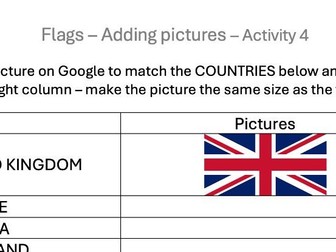
A beginner-friendly Microsoft Word skills bundle designed to help pupils build confidence with essential formatting tools through engaging, country-themed activities. This resource includes four ready-to-use activities focusing on: Changing text size Changing text color Formatting text Inserting images into a document Each activity uses countries as a theme to make digital skills practice more engaging and meaningful. Pupils follow the task prompts to edit and improve their work while practicing key Microsoft Word features. This bundle is ideal for: Beginner computer skills lessons Primary and lower-secondary learners SEN settings Independent work, small-group support, or cover lessons A short digital skills unit A short teacher-notes page is included to explain how the activities can be used. Before beginning each task, demonstrate the relevant Microsoft Word feature, then allow pupils to complete the matching activity independently or with support.
Halloween Computer Skills Activity | Drag-and-Drop, Image Search and Typing | KS1–KS2 / SENQuick View
Lessons_with_Harvey

Halloween Computer Skills Activity | Drag-and-Drop, Image Search and Typing | KS1–KS2 / SEN

(0)
A Halloween-themed computer skills activity designed to help pupils practice keyboard, mouse, image-search, and drag-and-drop skills through engaging seasonal tasks. Pupils complete Halloween word matching activities, drag labels to the correct images, practice inserting suitable free-to-use images, and carry out simple online research about Halloween. The resource provides a fun, structured way to reinforce early digital skills while supporting vocabulary development and independence. This resource includes: Halloween word matching and vocabulary activities Drag-and-drop mouse-control tasks Image-insertion tasks using a Halloween theme Beginner-friendly online-research questions Opportunities to practice typing and using the mouse A pupil self-evaluation opportunity A built-in teacher assessment section to record whether pupils completed the task independently or with support, what they achieved, and an appropriate next step Editable PowerPoint format Ideal for Halloween-themed computing lessons, primary pupils, lower-secondary SEN learners, small-group support, or independent digital-skills practice. It can be used as a seasonal standalone activity or as the final lesson in a beginner computer-skills sequence.
Keyboard and Mouse Skills 2 | Capitals, Spacing and Drag-and-Drop | KS1–KS2 / SENQuick View
Lessons_with_Harvey

Keyboard and Mouse Skills 2 | Capitals, Spacing and Drag-and-Drop | KS1–KS2 / SEN

(0)
A beginner-friendly computer skills recap activity designed to help pupils build confidence using both the keyboard and mouse. Pupils practice using capital and lower-case letters, adding spaces between words, and completing a range of mouse-control tasks. The activities include dragging and dropping objects, sorting by color, resizing images, and moving arrows from start to end. This resource includes: Keyboard practice using capital and lower-case letters Space-bar practice using short sentences Drag-and-drop and color-sorting tasks Mouse-control challenges, including moving and resizing objects Personal-interest extension slides for food, movies, and games A pupil self-evaluation opportunity A built-in teacher assessment section to record whether pupils completed the task independently or with support, what they achieved, and an appropriate next step An editable PowerPoint format Ideal for beginner computing lessons, primary pupils, lower-secondary SEN learners, small-group support, or independent digital-skills practice. It works particularly well as a recap lesson after introductory typing and mouse-control activities.
Colour Search Digital Skills Activity | Google Images & PowerPoint | KS1–KS2 / SENQuick View
Lessons_with_Harvey

Colour Search Digital Skills Activity | Google Images & PowerPoint | KS1–KS2 / SEN

(0)
A simple, engaging digital skills activity that helps pupils practise using Google Images, searching by colour, and organising their ideas in PowerPoint. Pupils search for images in different colours using Google Images and the colour-filter tool. They then copy and paste their favourite findings into a structured PowerPoint template, creating a personalised colour collage as they work through each step. This resource includes: A Word document with clear, step-by-step instructions. An editable PowerPoint template organised by colour. A low-pressure activity that supports independence, creativity and basic digital skills. A useful structure for pupils who benefit from a clear sequence and visual organisation. Suitable for KS1–KS2, beginner digital-skills learners, and SEN settings. It can also work well as a calm starter activity, independent task, or introduction to image searching and PowerPoint. Optional classroom tip: Share the activity through Google Classroom or another learning platform so pupils can access the instructions and submit their completed PowerPoint easily. Which part of the description best reflects what made the activity work well with your pupils?
Typing and Mouse Skills Activity | Beginner Computer Skills | KS1–KS2 / SENQuick View
Lessons_with_Harvey

Typing and Mouse Skills Activity | Beginner Computer Skills | KS1–KS2 / SEN

(0)
A beginner-friendly computer skills activity designed to help pupils build confidence using a laptop or desktop computer. Pupils practice typing short sentences into structured text boxes, using the mouse to click and drag, and inserting suitable free-to-use images into a PowerPoint presentation. Familiar prompts about school, free time, friends, favorite food, films, and clothing help make early digital-skills practice more engaging. This resource includes: Guided typing practice with short, accessible sentences Mouse-control practice, including clicking and dragging Opportunities to practice typing personal information and preferences Image-insertion tasks using free-to-use images or teacher-provided images A pupil self-evaluation opportunity A built-in teacher assessment section to record whether pupils completed the task independently or with support, what they achieved, and an appropriate next step Extension ideas for more confident pupils Editable PowerPoint format Ideal for beginner computing lessons, primary pupils, lower-secondary SEN learners, small-group support, or independent digital-skills practice. Teacher support may be helpful for pupils new to typing, mouse control, or image insertion.
Beginner Computer Skills Term 1 Bundle | Planning + 6 Activities | KS1–KS2 / SENQuick View
Lessons_with_Harvey

Beginner Computer Skills Term 1 Bundle | Planning + 6 Activities | KS1–KS2 / SEN

(0)
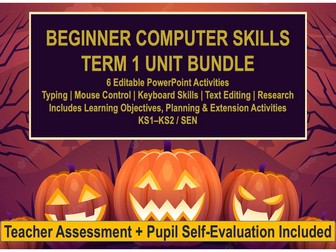
A complete Term 1 beginner computing unit designed to build pupils’ confidence with essential computer, keyboard, mouse, text-editing, and online-research skills. This structured six-activity bundle provides a clear progression from early typing and mouse control to computer-part vocabulary, keyboard functions, text formatting, image insertion, and simple online research. It is ideal for primary pupils, lower-secondary SEN learners, small-group support, or a practical introductory digital-skills unit. What’s included 6 editable PowerPoint activities Typing and Mouse Skills Parts of a Computer and Typing Skills Keyboard and Mouse Skills Recap Text Editing and Online Research Formatting and Research Halloween Computer Skills Activity Additional teacher materials Term overview and suggested teaching sequence Learning objectives for each activity Teacher planning and delivery notes Extra extension activities for more confident pupils Pupil self-evaluation opportunities Built-in teacher assessment sections to record independence, achievement, and next steps Editable files, allowing teachers to adapt prompts and examples for their pupils Skills covered Keyboard and mouse control Sentence typing, capital letters, lower-case letters, and spacing Identifying common computer parts Drag-and-drop, moving, sorting, and resizing objects Changing text color and size Using bold, italics, underline, and shape-color tools Inserting suitable free-to-use images Conducting simple online research safely
Text Editing and Online Research Bundle | 3 Beginner Computing Activities | KS1–KS2 / SENQuick View
Lessons_with_Harvey

Text Editing and Online Research Bundle | 3 Beginner Computing Activities | KS1–KS2 / SEN

(0)
A three-activity beginner computing bundle that develops pupils’ confidence with text editing, formatting, online research, and image insertion. The activities progress from changing text color and size, to using bold, italics, underline, and shape-color tools, before applying keyboard, mouse, image-search, and research skills in a Halloween-themed activity. They can be taught as a short sequence or used individually for focused practice. This bundle includes: Activity 4: Text Editing and Search — changing text color and size, researching technology, and organizing images in PowerPoint Activity 5: Formatting and Research — identifying shapes, changing shape colors, and using bold, italics, and underline Activity 6: Halloween Computer Skills Activity — seasonal vocabulary, drag-and-drop tasks, image insertion, and simple online research A pupil self-evaluation opportunity in each activity Built-in teacher assessment sections to record whether pupils completed tasks independently or with support, what they achieved, and an appropriate next step Editable PowerPoint files Extension opportunities for more confident pupils Ideal for beginner computing lessons, primary pupils, lower-secondary SEN learners, small-group support, or independent digital-skills practice. This bundle works well as the second part of a beginner computer-skills unit, following early typing and mouse-control activities.
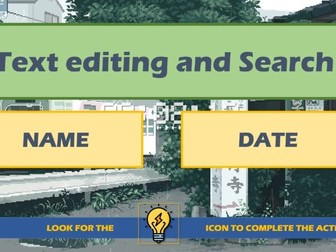
Text Editing and Online Research Activity | Color, Font Size and Search Skills | KS1–KS2 / SENQuick View
Lessons_with_Harvey

Text Editing and Online Research Activity | Color, Font Size and Search Skills | KS1–KS2 / SEN

(0)
A beginner-friendly computer skills activity that helps pupils build confidence editing text and carrying out simple online research. Pupils practice changing text color and font size, then use a search engine to find information about technology. They also insert suitable free-to-use images into a structured PowerPoint activity, reinforcing keyboard, mouse, and early online-research skills. This resource includes: Text-editing tasks focused on changing color and font size Technology-themed image research and image-insertion tasks Beginner-friendly online-search questions Opportunities to develop independent keyboard and mouse skills A pupil self-evaluation opportunity A built-in teacher assessment section to record whether pupils completed the task independently or with support, what they achieved, and an appropriate next step An editable PowerPoint format Ideal for beginner computing lessons, primary pupils, lower-secondary SEN learners, small-group support, or independent digital-skills practice. It works well after introductory typing and mouse-control activities.
Beginner Typing and Mouse Skills Bundle | 3 Computer Activities | KS1–KS2 / SENQuick View
Lessons_with_Harvey

Beginner Typing and Mouse Skills Bundle | 3 Computer Activities | KS1–KS2 / SEN

(0)
A structured three-activity beginner computing bundle designed to help pupils build confidence with essential typing, keyboard, and mouse-control skills. The activities can be used as a short sequence or as standalone practice. Pupils begin with simple sentence typing and mouse use, move on to identifying key computer parts, then develop keyboard and mouse control through capital letters, lower-case letters, spacing, drag-and-drop, color sorting, and resizing tasks. This bundle includes: Activity 1: Typing and Mouse Skills — sentence typing, personal-interest prompts, basic image insertion, and early mouse practice Activity 2: Parts of a Computer and Typing Skills — identifying computer devices and parts, including the screen, keyboard, mouse, trackpad, and speakers Activity 3: Keyboard and Mouse Skills Recap — capital letters, lower-case letters, space-bar practice, drag-and-drop, sorting, and resizing A pupil self-evaluation opportunity in each activity Built-in teacher assessment sections to record independence, achievement, and next steps Editable PowerPoint files Extension opportunities for more confident learners Ideal for beginner computing lessons, primary pupils, lower-secondary SEN learners, small-group intervention, or independent digital-skills practice. The activities work particularly well as the opening section of a beginner computer-skills unit.
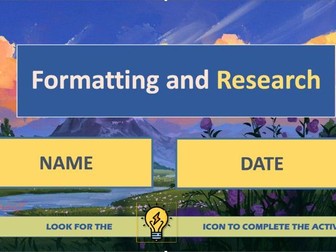
Text Formatting and Online Research Activity | Bold, Italics, Underline and Shapes | KS1–KS2 / SENQuick View
Lessons_with_Harvey

Text Formatting and Online Research Activity | Bold, Italics, Underline and Shapes | KS1–KS2 / SEN

(0)
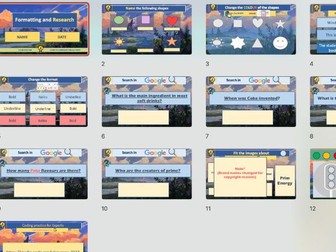
A beginner-friendly computer skills activity that helps pupils practice formatting text, editing shapes, and carrying out simple online research. Pupils identify common shapes, change shape colors, and use text-formatting tools such as bold, italics, and underline. They then practice searching online for simple information and organizing suitable free-to-use images in a structured PowerPoint activity. This resource includes: Shape-identification tasks Activities for changing shape colors Text-formatting practice using bold, italics, and underline Beginner-friendly online-research questions Image-insertion activities using a neutral drinks and healthy-choices theme A pupil self-evaluation opportunity A built-in teacher assessment section to record whether pupils completed the task independently or with support, what they achieved, and an appropriate next step Editable PowerPoint format Ideal for beginner computing lessons, primary pupils, lower-secondary SEN learners, small-group support, or independent digital-skills practice. It works well as a follow-up activity after pupils have practiced typing, mouse control, text color, and font size.
Parts of a Computer and Typing Activity | Beginner Computer Skills | KS1–KS2 / SENQuick View
Lessons_with_Harvey

Parts of a Computer and Typing Activity | Beginner Computer Skills | KS1–KS2 / SEN

(0)
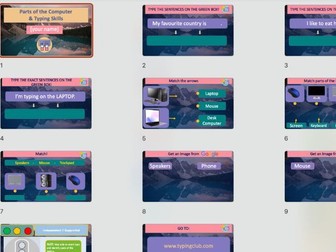
A beginner-friendly computer skills activity designed to help pupils identify common computer equipment and build confidence with early typing practice. Pupils type short sentences into structured text boxes, identify and match key computer parts, and explore the difference between devices and components. The activity covers laptops, desktop computers, screens, keyboards, mice, trackpads, speakers, phones, and tablets. This resource includes: *Short, accessible typing tasks *Matching activities to identify common computer devices and parts *Activities covering the screen, keyboard, mouse, trackpad, and speakers *Visual tasks that support vocabulary development and device recognition *A pupil self-evaluation opportunity *A built-in teacher assessment section to record whether pupils completed the task independently or with support, what they achieved, and an appropriate next step *Extension ideas for more confident pupils An editable PowerPoint format Ideal for beginner computing lessons, primary pupils, lower-secondary SEN learners, small-group support, or independent digital-skills practice. It works well as an early lesson in a computer-skills sequence, following introductory typing and mouse-control practice.
Safe Image Search and Fact Checking Activity | Online Safety | KS1–KS2 / SENQuick View
Lessons_with_Harvey

Safe Image Search and Fact Checking Activity | Online Safety | KS1–KS2 / SEN

(0)
A practical online-safety and digital-research activity that helps pupils develop confidence searching for images and checking simple information online. Pupils practice using clear search terms, looking for appropriate images with teacher guidance, and adding images to a structured PowerPoint activity. They also complete simple true-or-false research tasks, encouraging them to question information found online rather than accepting it immediately. This resource includes: Safe image-search practice using teacher-approved search tools Activities using clear and specific search terms Image-selection and image-insertion tasks “Guess the search” activities to develop keyword understanding Beginner-friendly fact-checking, using true-or-false statements Opportunities to develop typing, mouse, and online-research skills Pupil self-evaluation opportunity Built-in teacher assessment section for independence, achievement, and next steps Editable PowerPoint format Ideal for online-safety lessons, beginner computing, primary pupils, lower-secondary SEN learners, small-group support, or independent digital-skills practice.