


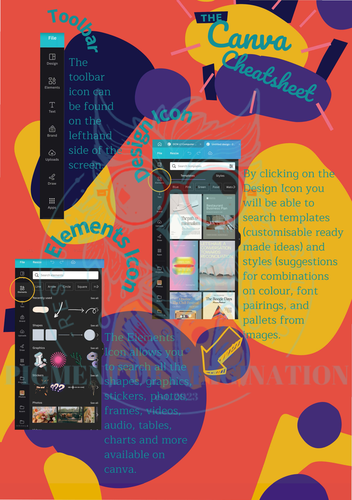
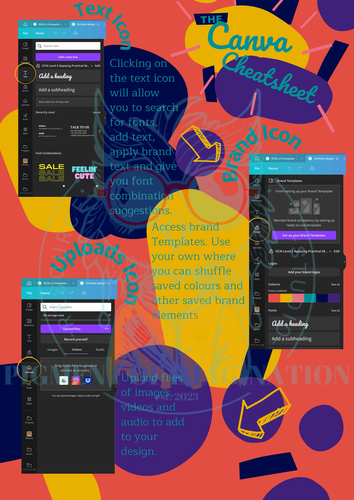
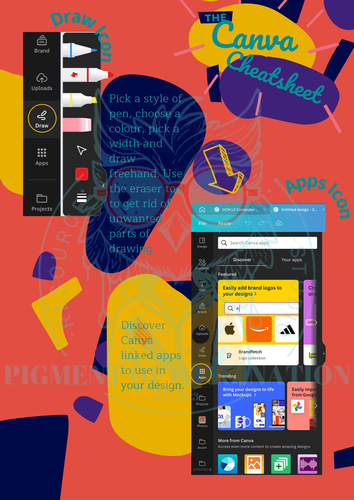

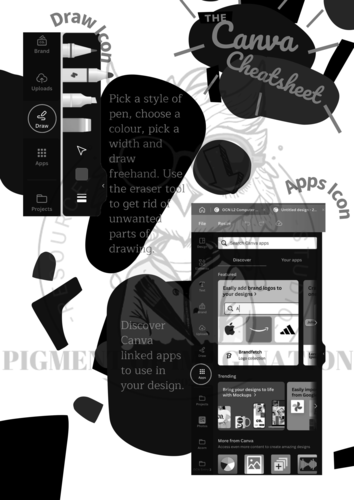
Help students and teachers master Canva with this practical Canva Design Tools Guide. Designed for beginners, this visual reference explains the most commonly used Canva tools, icons and toolbar functions through clear diagrams and easy-to-follow explanations, making it ideal for introducing graphic design and digital creativity in the classroom.
Perfect for KS3 and KS4 Art & Design, Computing, Creative Media and Digital Literacy, this resource can be displayed as a classroom poster, used as a student handout or incorporated into teacher demonstrations to build confidence using Canva.
What’s Included
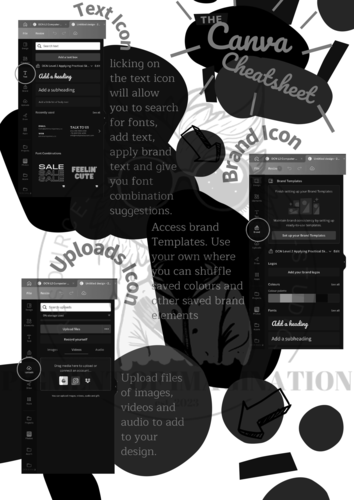
A 3-page printable PDF featuring Canva toolbar icons, design tool explanations and visual infographics. Includes both a full-colour version for classroom displays and a printer-friendly greyscale version for student handouts.
Curriculum Links
Suitable for KS3 and KS4 Art & Design, Computing, Creative Media and Digital Literacy. Supports graphic design, digital creativity, visual communication and the confident use of design software.
Teaching Tip
Display the guide as a classroom poster or use it as a quick-reference sheet while students complete Canva projects. It also works well as an introduction to graphic design software before independent practical work.
To preview the resource, search YouTube for “Canva - Canva Guide To Design Tool Functions TES Resource”.
Feedback
If you found this resource useful, I’d really appreciate an honest review on TES. Your feedback helps other teachers and supports the development of future resources.
Questions or suggestions are always welcome at pigmentofimaginationstudio@gmail.com.
Follow My TES Shop
Pigment of Imagination Resource Studio
Related Digital Art Resources
Adobe Photoshop Key Tools Guide | Poster, PDF & PowerPoint
The 5 Es of ICT & Digital Learning | Classroom Poster
Licence
©2026 Art Resource Studio – Pigment of Imagination
For personal and classroom use only. Redistribution, resale or uploading this resource to websites, shared drives or other platforms is prohibited under the TES Terms and Conditions.
Something went wrong, please try again later.
As a teacher, integrating captivating visuals into my lessons is essential, and Canva seemed like the perfect tool. However, I often found myself lost amidst its many features. Then, I discovered the Canva Reference Help Sheet, and it's been a game-changer. This guide's simplicity is its strength. It's well-organized with clear headings and step-by-step instructions, making it easy to navigate, even for tech novices. No more wasting time searching for tools or features. What I love most about this reference sheet is its no-nonsense approach. It gives you valuable insights and tips without overwhelming you with jargon or excess details. It's the perfect solution for teachers who need effective, straightforward advice. The sheet is a treasure trove of practical design tips, from resizing and positioning elements to choosing the right colors and fonts. It's like having a personal design tutor by your side. But what sets it apart is its focus on creativity. It provides guidance on creating engaging content, which is essential for keeping students' attention. My presentations now look polished and professional, making them far more engaging. Moreover, it offers valuable keyboard shortcuts, saving both time and effort. In short, the Canva Reference Help Sheet has simplified Canva, making design easy and efficient for teachers. It's a must-have resource in any teacher's toolkit, helping you create stunning visuals effortlessly. I highly recommend it to fellow educators.
Report this resourceto let us know if it violates our terms and conditions.
Our customer service team will review your report and will be in touch.
£1.75