


This lesson teaches Year 6 students about website accessibility, covering alt text, color contrast, and navigation to make their Google Sites usable for all.
This is a complete and engaging lesson focusing on website accessibility for Year 6 computing. This is the third lesson in a six-part series on website design, building upon students’ previous work.
The lesson begins with a discussion on what makes a website trustworthy and a recap of a web designer’s role . The main focus is on teaching students how to make their websites accessible to a wider audience, including people with visual, motor, or cognitive difficulties .
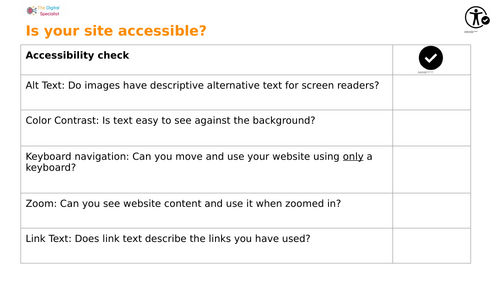
The resource provides a practical accessibility checklist for students to evaluate and edit their own Google Sites, covering key areas such as:
- Alt Text: Adding descriptive alternative text to images for screen readers.
- Color Contrast: Ensuring text is easy to read against the background.
- Keyboard Navigation: Checking if the website can be used with a keyboard only.
- Zoom: Verifying that the website is functional when zoomed in.
- Link Text: Writing descriptive link text.
The lesson also teaches students to test their website on different devices (computer, tablet, smartphone) to ensure it is accessible on all platforms . The lesson concludes with a reflective activity to consolidate learning on accessibility and potential website changes.
What’s included
- Full editable Google Slides/ PowerPoint lesson (step-by-step activities)
- Resource sheets showing how to test websites for accessibility and a accessibility checklist for evaluating their own websites
- Plenary activities for reflection on accessibility online
Something went wrong, please try again later.
This resource hasn't been reviewed yet
To ensure quality for our reviews, only customers who have purchased this resource can review it
Report this resourceto let us know if it violates our terms and conditions.
Our customer service team will review your report and will be in touch.
£1.00