Digital Functional Skills - Module 1, 2, 3 & 4 - BUNDLEQuick View
Smartbooks

Digital Functional Skills - Module 1, 2, 3 & 4 - BUNDLE

19 Resources
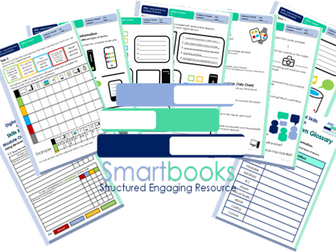
These resources have been created for those delivering the Digital Functional Skills Qualification at Entry Level which replaces the current Functional Skills ICT Qualification from 31st of July 2023. The DFS qualification’s main purpose is to provide reliable evidence of a learner’s achievements against content that is relevant to the workplace and real life. These resources provide a structured assessment in workbook form to evidence learner’s knowledge and skills as well as their ability to apply these in different contexts and demonstrate that all learning outcomes have been met. The qualification itself is made up of many 5 main skill areas (Modules) each with its own series of units. Each workbook includes various challenges, activities and tasks to prove learners understanding. Each page has a header that includes the individual outcomes covered and can be assessed easily and signed off. This Bundle of resource covers: Module 1 - Using devices and handling information 1.1 Know the main features and uses of different types of device. Task 1 - Learners to identify 9 key digital devices using images. Task 2 - Using their existing knowledge coupled with some online research, learners will record below 5 key features for each digital device. Task 3 – Learner will then collate data on how much each device is used by themselves and their peers. Task 4 – Using questioning, learners will identify pros and cons of each device and their overall popularity. They will investigate other devices available on the market and give their opinions of the future of technology as a whole. Also included in this resource is a Skills and Knowledge checklist to be completed before and after delivery of this unit. It also includes a glossary with key words associated with this module to be completed by the learner in their own time. Module 1 - Using devices and handling information 1.2 Know what an application is and the main types of application software Task 1 - Demonstrate knowledge on the difference between Hardware and Software and give examples for both. Task 2 - Understand the function of an operating system and know where to find details of an OS on various devices. Task 3 - Become familiar with the different types of applications available and how they all have a different purpose. Task 4 - Know how to locate ‘screen time’ on mobile devices and analyse application usage and trends. Discuss the pro and cons and how screen time could be limited. Task 5 – Write a review for a favourite application using the template provided or leave an actual review on your mobile phone. Also included in this resource is a Skills and Knowledge checklist to be completed before and after delivery of this unit. It also includes a glossary with key words associated with this module to be completed by the learner in their own time. Module 1 - Using devices and handling information 1.3 Apply system settings (including display, sound, Wi-Fi, time, language, accessibility). Task 1 – Learners to become familiar with the system settings menu using Microsoft windows and identify specific settings found in each category i.e. Personalisation, Network etc. Task 2 – Learners will navigate System settings, locate particular icons and give reasons why they may need to be accessed and applied. Task 3 – Learners to read 3 scenarios and find a solution for each. They will also show clearly where to locate the setting required. Task 4 – Learners to create 2 of their own scenarios and challenge their peers to fins a solution using an appropriate system setting. Task 5 – Includes a selection of Flashcards that can be cut out, printed on cardboard or laminated and used to reinforce knowledge of system settings. Learners can also be given a card randomly and then demonstrate, using a device, how to apply that particular system setting. Also included in this resource is a Skills and Knowledge checklist to be completed before and after delivery of this unit. It also includes a glossary with key words associated with this module to be completed by the learner in their own time. Module 1 - Using devices and handling information 1.4 Navigate online content to locate required information. Task 1 - Learners will correctly type 2 URL examples into a browser and record details about the different websites. Learner can continue this task by entering their own URLs to help familiarise themselves further with this practice. Task 2 - Learners will understand the difference between a browser and a search engine and show this by ticking the correct box next to each example logo. Task 3 - Learners to unscramble some of the various reasons why we all use the internet. They will also give some examples of their own. Task 4 - Learners will give examples of effective keywords to use when searching for relevant information online. Task 5 - Learners will show an understanding of how to check the validity of information found online and will choose 6 example websites to demonstrate this. Task 6 - Learners will follow step by step instructions on how to save websites into a browser and then bookmark 3 of their own for easier access. Task 7 - Learners to become familiar with the navigation tools found in browser (chrome) and match the correct name and function of 14 examples. Module 1 - Using devices and handling information 1.5 Carry Out Searches online Task 1 - Learners are required to find the answers to find the answers to 18 general knowledge questions using the World Wide Web. This can be an individual or group timed challenge. All answers will be officially checked with any incorrect answers incurring a 10 second penalty. Task 2 - Learners will become familiar with the most commonly asked online questions. They will guess using ‘first word’ criteria and then carry out a search to find the ‘most popular’ based on the most current data. Task 3 - Learners will learn how to take a screenshot using different digital devices, put this into practice and attach the evidence. Task 4 - Learners will demonstrate how to carry out a variety of searches online. They are required to plan a fictional holiday following specific guidelines and meeting certain criteria. Extension Activity – Learners to continue with Task 4 and carry out two further searches based around the weather and reviews of their chosen destination and accommodation. Also included in this resource is a Skills and Knowledge checklist to be completed before and after delivery of this unit. It also includes a glossary with key words associated with this module to be completed by the learner in their own time. Module 1 - Using devices and handling information Unit 1.6. Use files to read and store information (including creating a file, opening a file, reading information from a file, editing a file, saving a file). Task 1 - Learners to gain an understanding of digital files, how they work, what are their main functions and the benefits and advantages of compared to traditional physical documents. (Answers to Task included) Task 2 - Learners will become familiar with 7 of the most common digital file types and are asked to break each down with a clear description and research reasons we may need to use them. (guidance to Task included) Task 3 - Learners will look at the impact of the digital age and how we operate now in comparison with only a few years back. They will also become familiar with new and older forms of technology. Task 4 & 5 - Is a basic introduction into some of the skills they will be required to demonstrate in Module 2 (resources will be available in 2024). In ‘Task4’ they will use Microsoft WORD to open an existing Text Document, edit it following a series of instructions, save the document and print off as evidence. Learners will need to access Word Doc – ‘SB Football Rules - WORD File - To be Edited’. Both this and a completed example are included with download. In ‘Task 5’Learners will access a JPEG File and use Microsoft Photo Viewer or Paint 3D to edit it however they want using the tools available within the software. They will need to save the amended image, print it off and attach to the workbook as evidence. Learners will need to access ‘SB Sunrise - JPEG File - To be Edited’. Both this and a completed example are included with download. Task 6 – Learners can now demonstrate their new knowledge to open, create, edit and save a digital file. They can use any off the 7 file types looked at in the unit. They will need to print off their work as evidence and could also share with the group. Also includes a Skills and Knowledge Checklist and Glossary with key words for learners to complete. Module 1 - Using devices and handling information Unit - 1.7 - Use files and folders to organise and retrieve information (including local and remote storage). Task 1 – An introductory discussion where learners are to identify areas of their life they like to keep organised and share opinions on the benefits mirroring this good practice in their digital world. Task 2 - Learners will become familiar folder hierarchy and the importance of categorising and naming main folders as part of this process. Task 3 - Learners will demonstrate they can structure folders sub folders and files correctly using cut out templates. The challenge can be undertaken, individually, in pairs or groups and even timed for an element of competition. (Tutor Answers included) Task 4 - Learners will determine 5 authentic and 5 misleading tips for Digital Housekeeping. (Tutor Answers included) Task 5 - Learner will follow 6 mini tasks to demonstrate their ability of knowledge gained so far. The tutor will observe and using a witness checklist, sign off each one completed task. Task 6 – Learners to read/discuss the statements that describe remote and local storage and match the correct benefits and considerations from the list. They will also need to recognise 3 main cloud serve providers. Task 7 - The last task requires learners to put the knowledge gained from this unit into practice and implement a thorough and efficient tidy up on their digital devices i.e. phone tablet, pc laptop etc. Also included in this resource is a Skills and Knowledge checklist to be completed before and after delivery of this unit. It also includes a glossary with key words associated with this module to be completed by the learner in their own time. Module 1 - Using devices and handling information Unit - 1.8 - Know when there is a problem with a device or software and know the difference between system errors. Task 1 – An introductory discussion where learners are to share experiences of things that have gone wrong, and frustrations caused when using any type of digital device. Learner will then uncover other common malfunction using images. Task 2 - Learners will become familiar the difference between User and System errors and give 2 examples for each. Task 3 – Learners will demonstrate their understanding by looking at 10 scenarios that all portray real life problems and identifying whether it is a system error, user error or a combination of both. Task 4 & 5 - Learners will determine 5 common viruses from the images and Research the characteristics, functions and how each virus operates. They will add this information to the table. A Guided answer sheet is included for Tasks 1,4 &5 Also included in this resource is a Skills and Knowledge checklist to be completed before and after delivery of this unit. It also includes a glossary with key words associated with this module to be completed by the learner in their own time. Module 1 - Using devices and handling information Unit - 1.9 Apply a solution to solve a simple technical problem. Task 1 – An introductory to how troubleshooting can help resolve digital device issues without immediately seeking professional help. Learners will reorder 9 potential fixes (troubleshooting steps) in a logical order. Task 2 – Revisiting 4 of the real-life dilemmas from Unit 8, learners will research and record a series of suitable troubleshooting steps for each. An example has been given. Task 3 - Learners will become familiar with 10 common error messages that appear on-screen when there is a problem. They will fill in the missing words while gaining an understanding of what each of them mean. Task 4 - Learners to take part in a multiple-choice quiz in pairs or independently, followed by a group discussion based on everyone’s answers. Extension Activity – Learners have the opportunity to continue Task 2 and find solutions for the remaining 4 dilemmas form Unit 8. Tutor Answers are included for all 4 tasks. Module 2 - Creating and Editing - 2.1 - Use a suitable application to enter, edit and format text This resource includes: Task 1 - Learners to identify 3 of the main Word processing software applications and then give 3 examples of editing and 3 examples of formatting text. This will confirm they know the difference. They will then move into an activity that requires them to label the basic formatting tools found in Microsoft WORD (The application that will be used throughout this unit) Task 2 - Using their existing knowledge coupled with some online research, learners will complete a table that showcases the functionality and application of the previously identified formatting tools.(Tutor Guided Answers are included) Task 3 (a) – Learners will open an email and download the attached document (This is included and will have been sent prior by the tutor). Learners will then format the text by following a series of instructions. They will then save the new version ready for the next task. (Guided Tutor example included) Task 3 (b) – This is a continuation of Task 3(a) with 8 more instructions, some of which will stretch and challenge. Learners will save and print work as evidence. (Guided Tutor example included) Task 4 – Learners will take part in a ‘true’ & ‘false’ quiz based on the dos and don’ts of formatting text. Tutors can then recap on the unit, encourage discussion and go through answers as a group (Guided Answers included) Also included in this resource is a Skills and Knowledge checklist to be completed before and after delivery of this unit. It also includes a glossary with key words associated with this module to be completed by the learner in their own time. **Module 2 - Creating and Editing - 2.2 - Use a suitable application to enter, edit and format text. ** This resource includes: Task 1 - Learners to identify 3 commonly used Graphic Editing software and then discuss as a group their own experiences of using these applications. They are then required to brainstorm 6 picture formatting tools that can be found in Microsoft WORD. (The application that will be used throughout this unit) Task 2 - They will then move into an activity that requires them to label the basic picture formatting tools found within the picture formatting tab. Task 3 – Learners are given 9 images, adjacent to each image are 9 duplicates of the same image, each formatted using one of the previously mentioned tools. Their objective is to identify the formatting tool used and discuss the function for each. Pages 6-9 demonstrate how to use 6 other picture formatting tools that are regularly used when editing images. These are instructional tasks and learners can practice using them before putting them in to practice in the next task. Task 4 & 5 – Learners will be emailed 2 Digital Image Files - ‘Image A - Donkey’ & ‘Image B - Highland’. Learners are required to insert the pictures into a blank WORD Document (Extra Tutor guidance is included on Page 19) and then implement the 6 formatting instructions provided for each. They can then save and print the new images off as evidence. Task 6 - Learners have the chance to select an image from the 6 provided (included in resource Image C-H) or use their own if they prefer. They will then edit the image using 6 different formatting tools recording them on the Page 12. They can invite/challenge peers to edit the image in the same manner. Task 7 – Learner will finish the unit by completing a 12-question multiple-choice recap quiz Module 2 - Creating and Editing - 2.3 - Combine different types of information (including text, graphics, images) for a given purpose. Task 1 - Learners to understand why and when it is appropriate to combine Text, graphics and images and identify 9 examples of when documents integrate different types of information. The next 3 pages offer basic tutorials on how to effectively use Text boxes, shapes, and icons. Task 2 - Learners will produce a document that will practically demonstrate their competence using the ‘Text box’, ‘Shape’ an ‘Icon’ formatting tools. (An example has been provided) Task 3– Learners will be challenged is to produce a ‘Lost Dog’ poster using Word. It will include an image sent by the tutor as well as other graphics and include the information provided. Task 4 – The objective of this task is for learners to demonstrate even further confidence when combining graphics and text. They will showcase this by designing a fictional restaurant menu. (Example Provided) Task 5 – Learners will take part in recap questionnaire (Guided answers provided) Task 6 - As a group learners will come up with 6 benefits combining text, graphics and images. Your tutor will give you some (provided) guidance. Also included in this resource is a Skills and Knowledge checklist to be completed before and after delivery of this unit. It also includes a glossary with key words associated with this module to be completed by the learner in their own time. Module 2 - Creating and Editing - 2.4 Capture digital media (including image, video) and view in a suitable application. This resource includes: Task 1-– Learners to read descriptions and identify 3 of the most common digital devices used to capture digital media today. This leads into a group discussion. Task 2 - Learners to fill in the blanks of a piece of text that describes the importance of digital media in today’s digital age. Task 3 - Learners will be challenged in a matching the description game that will help them gain and understanding of specific file types in digital media. Tasks 4-6 include basic tutorials on 3 ways to transfer/download digital media on a PC from another digital device. Learners will be signed of for each task based on competency. Task 7 - Learners will identify different digital file viewing applications from their individual logos. Task 8 - Learners will have the opportunity to effectively demonstrate their ability to capture digital media in a presentation that they can deliver to peers. A structure of content is included. Also included in this resource is a Skills and Knowledge checklist to be completed before and after delivery of this unit. It also includes a glossary with key words associated with this module to be completed by the learner in their own time. Guided answers are also included for specific units. These resources have been created for those delivering the Digital Functional Skills Qualification at Entry Level which replaces the current Functional Skills ICT Qualification from 31st of July 2023. The DFS qualification’s main purpose is to provide reliable evidence of a learner’s achievements against content that is relevant to the workplace and real life. These resources provide a structured assessment in workbook form to evidence learner’s knowledge and skills as well as their ability to apply these in different contexts and demonstrate that all learning outcomes have been met. The qualification itself is made up of many 5 main skill areas (Modules) each with its own series of units. Each workbook includes various challenges, activities and tasks to prove learners understanding. Each page has a header that includes the individual outcomes covered and can be assessed easily and signed off. This Bundle of resource covers: Module 3 - Communicating 3.1 - Create and edit details in a contacts list. It should help students understand the practical aspects of managing a digital contacts list while engaging them with hands-on activities to reinforce learning. This resource includes: Tutorial 1 – Learners will follow the steps that show you how to create contacts in Outlook and input key details such as name, number, email, address etc. Tutorial 2 – They will continue the tutorial that on how to edit contacts details. This could include changing or adding extra information. Tutorial 3 - Finally, they will; learn how to organise contacts by adding them to favourites and placing them into lists. Task 1- Creating Contacts Learners will be provided with a handout containing information for 6 new fictional contacts. They will need to add these to outlook contacts. Task 2 - Editing Contacts Learners will be given a list of changes to make to these contacts i.e. update a phone number, add an email. Task 3 - Organise Contacts Finally they will need to add 2 contacts to ‘favourites’ and assign the others to at least two different lists i.e. Family, Friends etc. Independent Practice Task and Quiz (Answers included) Final Task - Personal Contacts List Learners will independently create their own contacts list using real contact and then write a brief 150–200-word summary explaining how to create, edit, and organise contacts. (Guided Example included) Also included in this resource is a Glossary for learners to fill out and a Skills and Knowledge checklist to be completed before and after delivery of this unit. **3.2 - Compose and reply to online communications comprising text and other digital content to individual and multiple recipients. ** This resource includes: Tutorial 1 – Learners will follow the steps that show you how to compose and send an email to an individual and to multiple recipients. Tutorial 2 – They will Continue the tutorial on how to attach digital content such as images & videos. Tutorial 3 - Finally, they will; learn how to ‘reply to’ and 'forward on’ an email from an individual and group recipients. Scenario: Lunch Time Gaming Club Task 1- Email an Individual and a Group. Learners will be provided with a scenario where they will need to compose and send an email to their Tutor. They will then compose and send a ‘follow up’ email to a selection of their peers. Task 2 - Attaching Digital Content Learners will send another email to both their tutor and their peers; however, this time it will include an image and link related to the set scenario. Task 3 - Replying to an Email Finally, each student will receive an email from their tutor of which they will need to reply to with a suitable message. Independent Practice Task - Movie Recommendation Learners will demonstrate their ability to independently compose and reply to online communications by recommending a Movie or TV Show. Recap Quiz (Answers included) Also included in this resource is a Glossary for learners to fill out and a Skills and Knowledge checklist to be completed before and after delivery of this unit. 3.3 - Initiate and participate in a video call. This resource includes: Task 1 – Learners will name 3 frequently used video call platforms and then identify 5 advantages to communicating in this way. (Guided Answers included) Task 2 - Setting up Microsoft Teams The objective of this task is for learners to understand the basics of setting up a video call in Microsoft Teams and demonstrate this in a series of steps. Task 3 - Scheduling a Video Call The objective of this task is for learners to know how to schedule a video call in Microsoft Teams and demonstrate this in a series of steps. Task 4 - Joining a Video Call The objective of this task is for learners to practice joining a video call in Microsoft Teams and demonstrate this in a series of steps. Task 5 - Participate in a Video Call The objective of this task is for learners to participate confidently and appropriately in a video call and demonstrate this in a series of steps. For Tasks 2 - 5 learners will use a checklist and attach screen prints as evidence on separate sheets (Included) Recap Quiz (Answers included) Possible Extension Task Idea is included covering Troubleshooting common issues. Also included in this resource is a Glossary for learners to fill out and a Skills and Knowledge checklist to be completed before and after delivery of this unit. 3.4. Know what is meant by a digital footprint, understand the implications of a digital footprint, and know the range of digital activities (including social media activity, web searches, emails), that leave a digital footprint. This resource includes: Task 1 - Learners to be able to Know what is meant by a digital footprint and identify various examples. Task 2 - Learners will explore the difference between ‘Active’ and ‘Passive’ online activity. Task 3 - Learners are required to create a digital footprint daily log based on their online activity. There is guidance on how they can find this data and information and a template log included. Task 4 & 5 - Learners to study two fictional stories that both focus on the negative and positive implications of leaving a digital footprint. Task 6 - Learners will reflect on to improve their online behaviour and then required to create a personal Action Plan. Template included Recap Quiz (Answers included) Module 4 – Transacting 4.1 Completing and Submitting an Online Form This resource includes: Task 1- What are Online Forms Learners to become familiar with types of online forms and match up each category with is correct description. Task 2 – Paper Based v Digital Online Forms Learners will discuss as a group the key benefits of using online forms compared to traditional paper ones. They can make a list of the pros and cons of each. Task 3 – Personal Details This activity allows learners to identify information that is commonly asked for on forms and information less frequently required. Task 4 – Data Validation Learners to read 4 scenarios and establish why each fictional character cannot proceed with their online forms. Task 5 – Learners will scan a (paper based) version of an online form created in Google Forms. They will make notes and identify different question formats and data validation rules. Task 6 – Create & Complete an online form Learners will create an account with Google and log into Google forms. They can follow the step-by-step instructions to build an online form which they will then send to their peers for completion and one to their tutor to evaluate and give feedback on. They can then collate responses in google forms and give feedback to one another. Final Task - Recap Quiz 4.2 Comply with verification checks to complete an online application. This resource includes: Task 1- Different Verification Methods Learners to participate in a card game that requires them to match different scenarios with the correct verification process. (16 Cards included) Task 2 – Online verification – Why is it so important? Learners will discuss as a group the importance of online verification covering three main areas. They can take notes and use them for Task 3 Task 3 – Online Verification Cont. Learner to answer the 8 questions that consider the pros and cons of online verification. They can also reflect on their own experiences of the various methods. Task 4 – Phishing and Fake Verification Learners to read the five examples of fake verification emails or messages you and identify 3 red flags for each. Task 5 – Understanding reCAPTCHA Learner to reveal what CAPTCHA stands for and have ago at some common online security tests. They can also evaluate some pitfalls with this online verification process. Task 6 – Create & Complete an online form Learners to capture and compile evidence of real verification processes. Ensuring they blank out any personal Information. See examples Final Task - Recap Quiz Also included in these resource is a Glossary for learners to fill out and a Skills and Knowledge checklist to be completed before and after delivery of this unit. Guide answers are also included throughout These resources are currently in a PDF file format. Word versions are available for free upon purchase of the PDF, please message me directly for these at SmartbooksEd@outlook.com. Feedback is Key and we value your positive comments and constructive criticism. Post a review and we will send you another singular resource of your choice for FREE! Just contact us at SmartbooksEd@outlook.com.

GCSE Computer Science Python ProgrammingQuick View
amrittanday1998

GCSE Computer Science Python Programming

(5)
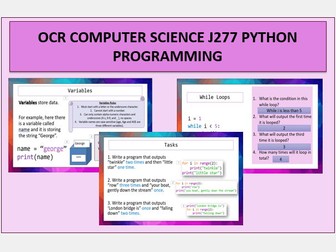
Recently updated with even more tasks! An entire 100+ slide PowerPoint covering Python Programming topics as stated in the OCR GCSE J277 Computer Science Specification. This set of slides includes theory, examples, coding tasks and answers as well as starter activities for the following topics: Variables Comments Data Types Casting Operators User Input Strings String Methods Concatenation Booleans Built in functions Conditional Statements FOR and WHILE loops Lists 2-D Arrays Functions and Procedures Worksheet for strings and string methods included WORKSHEET HAS NOW BEEN ADDED TO FILES. Table of contents is linked to relevant slides to save you as much time as possible!
Excel Spreadsheet Unit Lessons for KS3/KS4Quick View
hp1001

Excel Spreadsheet Unit Lessons for KS3/KS4

(3)
10 Lessons on Microsoft Excel skills. Lesson 1 - Intro to Excel, Simple Formula & Formatting Techniques Lesson 2 - Simple Functions (SUM, MAX, MIN, AVERAGE) & Data Types Lesson 3 - Functions (Count, CountA, Countblank, Round, IF) & Graph Types Lesson 4 - Functions (IF, SUMIF, COUNTIF) & Intro to Conditional Formatting Lesson 5 - Recap Functions (IF, SUMIF, COUNTIF) & Using Conditional Formatting Lesson 6 - Functions (Concatenate, Now, Today, Vlookup) Lesson 7 - Data Validation Techniques, Sorting Data & Filtering Data Lesson 8 - Recap Sorting & Filtering Data, Functions (LEFT & RIGHT) Lesson 9 - Protecting a Sheet, Protecting a Workbook, Encrypt a Workbook with Password, Protect a Workbook using Read Only Lesson 10 - Creating Macros to link sheets & Creating Pivot Charts Each lesson includes: Teacher Slides Powerpoint Starter/Do Now Tasks (Word Documents or Excel Spreadsheets) 3 - 5 Student Lesson Tasks (Excel Spreadsheets) Extension Tasks (Excel Spreadsheets, Word Documents or PDF Documents) Plenary/Exit Tasks (Included in the Teacher Slides Powerpoint)
AI (Artificial Intelligence) LessonsQuick View
nwilkin

AI (Artificial Intelligence) Lessons

(2)
Unlock the future with this highly engaging Artificial Intelligence (AI) lesson bundle! Dive into the world of Artificial Intelligence with this dynamic bundle of 6 interactive lessons, crafted specifically for Key Stage 3 and GCSE students. These lessons are packed with engaging content, student-friendly language and a wealth of activities and discussion points to ignite curiosity and deepen understanding of this cutting-edge field - all without requiring students to use AI tools, ensuring a safe and secure learning environment. WHAT’S INSIDE? **Lesson 1: What is AI? ** Explore the fundamentals of AI, including machine learning, supervised vs. unsupervised data, deep learning, large language models (LLMs) and generative AI. We address school concerns by explaining LLMs and generative AI without requiring software use, ensuring a safe and informative experience. Lesson 2: AI in our lives Engage students with a quiz on AI’s current applications. Discover how AI is reshaping careers and the exciting new roles emerging in its wake. Lesson 3: AI ethics and responsible use Delve into the ethical landscape of AI, examining real-world dilemmas, privacy issues, and strategies for safeguarding personal data. Lesson 4: Robots and AI Uncover the synergy between robots and AI, explore robotic components and predict the future of robotics through interactive games and discussions. Lesson 5: Expert systems Understand expert systems and their components. Students will interact with a student- friendly online expert system (without personal data collection) and craft their own Python-based system, enhancing their coding skills. Lesson 6: History and future of AI Journey through AI’s evolution from the 1950s to today. Compare generative texts from 2017 and ChatGPT-3 and discuss responsible AI use in schoolwork and beyond. WHO IS THIS FOR? Designed with Year 9 in mind, these adaptable lessons are ideal for both Key Stage 3 and GCSE classes. Perfect for computer science teachers aiming for comprehensive, flexible teaching materials, and non-specialist teachers seeking to deliver high-quality computing lessons confidently. WHY CHOOSE THIS AI BUNDLE? • Fully editable PowerPoint presentations, lesson plans and worksheets. • Engaging, interactive content tailored to inspire and educate. • Aligns with UK Computing curriculum. • No requirement for students to use AI tools, keeping them safe and secure. TAKE ACTION TODAY! Empower your students with the skills and knowledge to thrive in an AI-driven world. Get your hands on this essential teaching resource and transform your classroom experience now!
Digital Functional Skills - Module 1 - Using Devices & Handling Information - 1.1 - Digital DevicesQuick View
Smartbooks

Digital Functional Skills - Module 1 - Using Devices & Handling Information - 1.1 - Digital Devices

(7)
These resources have been created for those delivering the Digital Functional Skills Qualification at Entry Level which replaced the current Functional Skills ICT Qualification from 31st of July 2023. The DFSQ’S main purpose is to provide reliable evidence of a learner’s achievements against content that is relevant to the workplace and real life. These resources provide a structured assessment in workbook form to evidence learner’s knowledge and skills as well as their ability to apply these in different contexts and demonstrate that all learning outcomes have been met. The qualification is made up of 5 Module and broken down into a series of units. The unit workbooks include various challenges, activities and tasks to prove learners understanding. Each page has a header that includes the individual outcomes covered which can be signed off. he individual outcomes covered and can be assessed easily and signed off. This workbook covers: Module 1 - Using devices and handling information Unit - 1.1 Know the main features and uses of different types of device. This resource includes: Task 1 - Learners to identify 9 key digital devices using images. Task 2 - Using their existing knowledge coupled with some online research, learners will record below 3 key features for each digital device. Task 3 – Learner will then collate data on how much each device is used by themselves and their peers. Task 4 – Using questioning, learners will identify pros and cons of each device and their overall popularity. They will investigate other devices available on the market and give their opinions of the future of technology as a whole. Also included in this resource is a Skills and Knowledge checklist to be completed before and after delivery of this unit. It also includes a glossary with key words associated with this module to be completed by the learner in their own time. Guided answers when appropriate are also included. Other Workbooks in this DFSQ series are available on TES. Many are still being created and will all be available soon. This resource is currently in a PDF file format. Word versions are available for free upon purchase of the PDF, please message me directly for these at SmartbooksEd@outlook.com. Feedback is Key and we value your positive comments and constructive criticism. Post a review and we will send you another singular resource of your choice for FREE! Just contact us at SmartbooksEd@outlook.com.
End of Term Summer  Computing Quiz 2025Quick View
amrittanday1998

End of Term Summer Computing Quiz 2025

(5)
FREE SAMPLE AVAILABLE ON MY TES SHOP Need an end of term activity that is also educational and engaging? This quiz is the perfect resource for that. This resource includes a 50 question summer computing quiz with an answer sheet included! There are 10 rounds to the quiz, with a mixture of computing questions and fun rounds too. Rounds include guess the logo, computational thinking puzzles, acronyms and anagrams, guess the game character and many more, With 50 questions, it will last an entire lesson. All errors have been fixed
Computational Thinking Escape RoomQuick View
nwilkin

Computational Thinking Escape Room

(7)
This highly interactive lesson that requires the pupils to work in teams and use computational thinking skills to solve a range of puzzles. This activity perfect for pupils about to learn Python programming and you want to show the importance of computational thinking skills. **This resource was shortlisted for the Teach Secondary Awards, a very rare honor for an independent resource creator. ** Your class need to work together to escape a locked laboratory in a spaceship and start the engines to avoid being sucked into a black hole by completing different challenges which will use a variety of computational thinking skills. They are given most of the lesson to work together and at the end of the lesson, time is dedicated to discuss the computational thinking skills they used during the activity. This gives them a practical application for the computational thinking theory rather than using the tired old “making a jam sandwich” or “getting up in the morning” scenarios which are commonly used. This activity is not a handout driven escape room, it involves using an interactive PowerPoint presentation and physical tasks that moves away from pupils filling in yet another worksheet, to working together in a team to solve interesting and challenging puzzles. Pupils enjoy the lesson and are fully engaged whilst developing the key computational thinking skills of decomposition, pattern recognition, abstraction and algorithms. Please note: This lesson does require teachers to prepare some props beforehand and it is highly recommended the teacher reads through the teacher’s instructions and creates the props well before they want to use the lesson. Also please note that this resource does not work with Google Slides. Written primarily for key stage 3, this activity can be used in a variety of situations: Introducing pupils to computational thinking skills before they are introduced to a text-based programming language Used as an end of term fun lesson which still has an education element A fun activity to use on a year 6 transition day Allow your new year 7s to get to know their new classmates and grow team sprit Helping a reluctant class see the benefits of learning programming skills . What are you waiting for? Download this interactive escape room NOW, to help students learn about computational thinking skills in a fun and memorable lesson they will love and remember. You may also be interested in my Computational Thinking Worksheets which you can buy from here.
Creative IMedia R093 - Revision LessonQuick View
MrSmith_Business_ICT

Creative IMedia R093 - Revision Lesson

(0)
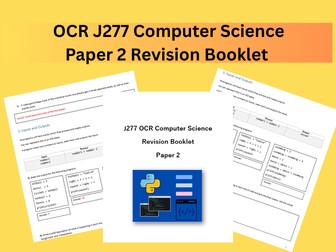
Teacher PowerPoint - 22 page resource with answers Student Activity - Double sided A3 word document - covering main aspects of R093 exam and how to answer 9 mark questions. Perfect for any revision lessons leading up to the exam.
Excel Spreadsheet Skills Project WorkbookQuick View
MissJ0130

Excel Spreadsheet Skills Project Workbook

(2)
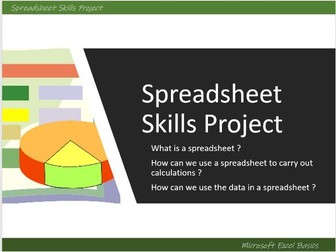
An Excel Basic Skills Project Workbook, remote learning or independent work,step- by- step instructions/ tasks with editable task sheets and powerpoint/ video , 6 tasks take students through : how to set up tables of data range of basic formula applying formatting spreadsheet vocabulary using data tables to create graphs Changing data to answer ‘What if … ?’ questions Used with Year 7 as a spreadsheet skills project but suitable for a range of ages. Can also be delivered lesson by lesson using teacher demo Excel files to support students in class ( I have used this both as a project and as tasks to support other in class Excel learning with Year 7 and 8 over 6 lessons or so ) Word document - can be printed as a booklet or as separate tasks, or uploaded online ( PDF version of full booklet also included) Suitable for homework, independent work or remote learning Powerpoint with video guides with tips for tasks included Answers to all tasks included in Excel file which includes full completed tasks formulae etc Interactive Word based Key Vocabulary quiz with answers ( can also be printed - included in booklet)
ICT Functional Skills - Scheme of work with lessons - Level 1 and 2Quick View
khedges123

ICT Functional Skills - Scheme of work with lessons - Level 1 and 2

(6)
This is a course for ICT Functional Skills. I used this with 17 to 18 year olds in further education. I have included all teacher PowerPoint presentations, worksheets and the scheme of work. The units included are: Unit 1 Making the most of your computer Unit 2 Managing Information - Passwords and viruses Unit 3 Finding and selecting information Unit 4 to 7 Excel Spreadsheets (Basic Formulas, IF Functions, Absolute function, Lookup formula) Unit 8 Working with Microsoft Word Unit 9 Combining and presenting information Unit 10 Using ICT to communicate I hope that you will find this helpful in the classroom. All presentations are easily adaptable as well the worksheets. Some of the Excel worksheets have been used on older versions of Excel, however they have recently been checked to the most updated version of Excel and do work fine.
Digital Functional Skills - Module 5 - 5.1-5.5 - BUNDLEQuick View
Smartbooks

Digital Functional Skills - Module 5 - 5.1-5.5 - BUNDLE

5 Resources
These resources have been created for those delivering the Digital Functional Skills Qualification at Entry Level which replaces the current Functional Skills ICT Qualification from 31st of July 2023. The DFS qualification’s main purpose is to provide reliable evidence of a learner’s achievements against content that is relevant to the workplace and real life. These resources provide a structured assessment in workbook form to evidence learner’s knowledge and skills as well as their ability to apply these in different contexts and demonstrate that all learning outcomes have been met. The qualification itself is made up of many 5 main skill areas (Modules) each with its own series of units. Each workbook includes various challenges, activities and tasks to prove learners understanding. Each page has a header that includes the individual outcomes covered and can be assessed easily and signed off. This Bundle of resource covers: This resource covers: Module 5 – Being Safe and Responsible online 5.1 Understand the need to stay safe and respect others when using the internet and communicating online This resource includes: Task 1 - Introduction - Learners to investigate 8 key terms (all relevant to this unit) and provide a 1 sentence definition for each. Task 2 - Exploring Online Risks & Emotional Well-Being - Learners to select one of three provided case studies, review the case study and complete the questions. Task 3 - Respect - Transform the tone and language of 4 online communication examples into respectful communication while maintaining the original message’s intent. Task 4 – Online safety tools - Match the correct descriptions, examples & benefits to each tool. (Privacy Settings and Blocking Features) Task 5 – Independent Task - Learners to create a clear and easy-to-follow step-by-step guide explaining how to activate and manage privacy settings for their chosen platform. Task 6 – Top 5 Online Safety Tips - Learners have an opportunity to showcase what they have learned about staying safe and respectful online and demonstrate skills and creativity they developed in Module 2 - Creating and Editing Recap Quiz (Answers included) This resource covers: **Module 5 – Being Safe and Responsible online 5.2 Know simple methods to protect personal information and privacy online (including not sharing personal info and, looking for HTTPS when logging in). This resource includes: Task 1 - Introduction - Learners to read the scenario and find 9 examples of personal information within the text and highlight as they go. Task 2 - Using the flow chart, learner will need to identify the ‘risky’ and ‘safe’ examples from 20 different posts. Task 3 - Learners to list 3 potential dangers or negative impacts that could result from 3 risky posts (chosen from Task 2) Task 4 – Learners to log on to the internet, connect to a browser, visit a (secure) website and follow the relevant instructions to access and screeshoy the website validation certificate. Task 5 – Independent Task - In this task, learners will write two versions of a post: one safe and one risky. Both posts will share the same information, but the risky post will include personal details and unsafe links. (Scenario and Social Media templates provided) Recap Quiz (Answers included) This resource covers: **Module 5 – Being Safe and Responsible online 5.3 - Set up and use security features, (including authentication methods to access devices and online services. Recap Quiz (Answers included) This resource covers: **Module 5 – Being Safe and Responsible online 5.4 - Understand the benefits of using security software (including anti-virus, firewall) to protect against online risks This resource includes: Task 1 - Learners will be asked to recognise three commonly used security software products and then brainstorm 3 benefits and 3 negatives associated with using security software programmes to protect their digital devices. Task 2 - Learners to use online resources including product websites to research AVG, McAfee, and Norton and complete a Comparison Chart provided. They will also record the cost of the premium version for each product in the chart. This will be followed by a group discussion. Task 3 – Learners to demonstrate an understanding of ‘Firewalls’ and how they function in preventing online threats and label a diagram. Task 4 – This task requires learners to spot the signs found in fake security adverts and pop-ups. Task 5 – Learners will clarify any misconceptions of security software by identifying fake myths and real facts and follow with an explanation. Task 6 – Learners will demonstrate they can update security software, run a scan, and review the results. They will follow the provided steps, and the tutor will observe/ assess their skills and complete an observation statement. Recap Quiz (Answers included) This resource covers: Module 5 - Being Safe and Responsible online This resource includes: 5.5 Know of and know how to minimise the effects of physical stresses (including pain from poorly positioned equipment and/or bad posture, repetitive strain injury, eye strain) that may result from using devices. Task 1 – Learners will read a newspaper article and answer questions to develop an introductory understanding of the physical stresses associated with digital device use. Task 2 – Learners will examine two images showing healthy and unhealthy posture at a computer workstation. They will match descriptions to the correct image and briefly explain the positive and negative impacts of each posture. Task 3 – Learners will identify the symptoms of Repetitive Strain Injury (RSI) by reading a scenario and answering related questions. They will also suggest three practical changes to help minimize the effects of RSI. Task 4 – A practical exercise routine that learners can follow either by reading written instructions or scanning a QR code to watch five instructional video clips. Task 5 – Learners will highlight seven causes and seven symptoms of eye strain and learn about the 20-20-20 rule as a strategy to reduce this type of physical stress. Task 6 – Learners will explore how the misuse of digital devices can impact mental and emotional well-being. They will conduct online research and complete a table with their findings. Task 7 – Learners will create a personal action plan to identify and reduce harmful digital habits. Over the course of one week, they will track their progress and reflect on the impact of their changes at the end of the week. Recap Quiz (Answers included) Also included in these resources area Glossaries for learners to fill out and Skills and Knowledge checklists to be completed before and after delivery of this unit. Guide answers are also included throughout These resources are currently in a PDF file format. Word versions are available for free upon purchase of the PDF, please message me directly for these at SmartbooksEd@outlook.com. Feedback is Key and we value your positive comments and constructive criticism. Post a review and we will send you another singular resource of your choice for FREE! Just contact us at SmartbooksEd@outlook.com.
COVER WORK - App Design - DT-ART-ICTQuick View
AJBresources

COVER WORK - App Design - DT-ART-ICT

(1)
This Resource includes 2 different A3 worksheets in which students need to design an app based on a specified brief. Each sheet has several tasks and there is more than enough work for 2-3 lessons. An excellent extension for these tasks is to get students to create hi-fidelity mockups of their Apps on Microsoft Powerpoint. This worksheet works well for years 7-11 and can be used across DT, ICT, Art and Graphics.
Computer science display periodic tableQuick View
st_cco

Computer science display periodic table

(6)
Computer Science periodic table wall display of key terms in programming. Wall display for ICT and Computer Science classroom. Key terms and keywords with definitions for programming in Python. Contains 32 key words used in programming with definitions under each one. Grouped together as publisher documents to easily print all 4 groups seperately. PLEASE NOTE: You will recieve 8 documents with this download. 4 documents are the coloured version to be printed out on white paper. The other 4 are black images with transparent text created on Photoshop to allow you to print on coloured paper of your choice. All files are Publisher Documents ready to be printed.
Extremism & SubculturesQuick View
EC_Resources

Extremism & Subcultures

(1)
NEW RSHE DfE GUIDELINES COMPLIANT - Brand new PSHE lesson all about how video platform algorithms (such as YouTube and Tiktok) can lead us to viewing extreme ideas and conspiracy theories, as well as subcultures (such as incels culture /misogyny) - often without us ever intending to. The lesson investigates what these extreme subcultures are, and how we are allowing platforms to shape our views and interests and what this may mean for wider society. Students will examine case studies of students who stumbled upon extreme videos or radical movements and see how they arrived at this content from first watching innocent or benign videos aligning with their interests, Created for the new 2026 RSHE guidance. Students will complete a wide range of tasks, literacy-based, creative, case studies, analysis and clip tasks. Everything is editable and easy to just pick up and use. All information need is included. You can contact us at info@ecpublishing.co.uk Who are EC Resources? EC Resources are the top TES PSHE providers and are a group of teachers who work together to create easy to use, high quality and editable lessons and units of work. We have created lessons for The Children’s Commissioner, The Bank of England, The British Legion, MACS Charity, Tes, LikeToBe Careers, the Criminal Cases Review Commission (UK Gov) and have also completed PSHE and Citizenship commissions for schools across the UK. Please visit our Tes store https://www.tes.com/teaching-resources/shop/EC_Resources for everything PSHE, RSE, RE and Citizenship. We still offer a free lesson of your choice for each time you leave a review! Just email info@ecpublishing.co.uk Teaching PSHE, RE or Citizenship GCSE next year? Why not join our Citizenship and PSHE teachers Facebook group, with 12,000 other teachers, for guidance, advice and resource sharing.
Rise of  Deepfakes and Malicious use of AI - PSHE LessonQuick View
Cre8tive_PSHE

Rise of Deepfakes and Malicious use of AI - PSHE Lesson

(1)
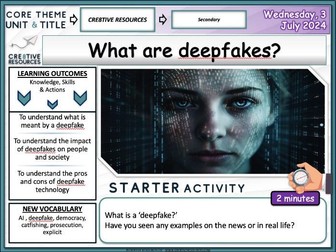
Rise of Deepfakes and Malicious use of AI - PSHE Lesson . A fully-resourced editable PSHE PowerPoint lesson (1 hour +) which can be used by teachers to deliver a detailed workshop / session on the importance of this topic. This is a topic that comes up under the new 2024 PSHE Statutory Guidance for RSHE. Learning Outcomes: To understand what is meant by a deepfake To understand the impact of deepfakes on people and society To understand the pros and cons of deepfake technology Key terms AI , deepfake, democracy, catfishing, prosecution, explicit Each Lesson Pack Contains: 1 Fully Editable Careers PowerPoint (Learning Outcomes, Confidence Checkers, Assessment of Learning, Variety of Tasks, Video Embedded URL Clips, Engaging Premium Quality Slides, Extra Support Websites, Challenging & Thoughtful Questioning) Assessment Opportunity (Confidence Checker) The lesson includes a detailed PowerPoint, variety of student facing tasks and comprehension tasks These resources have been designed to be engaging, informative and pick up and teach. Why not check out some of our latest super bundles below: Personal Finance as a young Adult Online Safety + Staying Safe Y12 Survival Kit - Personal Safety Y11 Survival Kit - Revision + Exam Stress British Values Explored Bundle Society, Body Image + Peer Pressure Finance Risk + Online Safety
Careers, Employability SkillsQuick View
EC_Resources

Careers, Employability Skills

20 Resources
25 HOUR UNIT - For the Gatsby Benchmark Careers Guidelines. All fully resourced lessons, well differentiated and highly rated 1 or 2 hour lessons suitable for secondary schools which can be used over both key stages - perfect to help you meet the new GATSBY criteria. Some of the lessons last two hours, all in all there is about 25 hours worth of teaching content. Pack includes - 20 x Powerpoints, 70 worksheets, well differentiated throughout, all with clips and LOs at three challenge levels: Includes: 1. Job interviews and preparation 2. What are employability skills? 3. Your skills and applying for suitable work 4. Payslips, income tax and national insurance 5. Equal opportunities in the worksplace 6. CVs - What are employers looking for? 7. Rights and responsibilities in the workplace 8. Preparing for Work Experience 9. Enterprise skills 10. Entrepreneurial skills 11. Enterprising personalities and qualities 12. Interpersonal skills 13. Communication skills 14. Using enterprising skills in the workplace 15. How do people succeed as entrepreneurs? 16. Workplace Skills - Conflict Management 17. Careers in STEM focus 18. How can we choose a career that's right for us? 19. What impact does our digital footprint have our futures and careers? 20. Why is Health and Safety important in the workplace? Many more inexpensive and free resources at my shop: EC_Resources Leave me a review and pick any other resource for free :) Many more new Careers Resources and PSHE lessons on the EC Publishing website.
Misogyny : Misogyny UNITQuick View
EC_Resources

Misogyny : Misogyny UNIT

7 Resources
NOW 7 HOURS! PSHE RSHE unit all planned to latest 2026 DfE RSHE guidelines, Combat the toxic masculinity, incels culture - 7 lesson package for secondary which will last you at least 6 hours (one lesson is a double) all about combating misogyny, extremist dangerous porn, sub-cultures, the Andrew Tate fad, incels and online extremism. The pack emphasises that masculinity is not a bad thing in itself, but certain aspects can be toxic and there is a real difference between positive and toxic masculinity. Focuses on all the themes brought up by the popular series Adolescence. This pack is all editable and created by EC Publishing, award winning resource creators and PSHE consultants. The 7 x PSHE lessons included are: Misogyny, the manosphere and Andrew Tate, An introduction to masculinity, Positive vs toxic masculinity, Radicalisation online and Incels, Feminism and combating toxic online groups, extremist porn inc, strangulation, choking and sexual ethics, incels and subcultures. Activities are scaffolded, there is a detailed and colourful PowerPoint, clip tasks with questions and answers, information pack, worksheets,literacy tasks, creative tasks, signposting to further help agencies and charities, clear outcomes and also partnered activities. It is fully editable, engaging and very easy to follow. Who are EC Resources? EC Resources are the top TES PSHE providers and are a group of teachers who work together to create easy to use, high quality and editable lessons and units of work. We have created lessons for The Children’s Commissioner, The Bank of England, The British Legion, MACS Charity, Tes, LikeToBe Careers, the Criminal Cases Review Commission (UK Gov) and have also completed PSHE and Citizenship commissions for schools across the UK. This bundle is taken from the new EC Publishing 2024 Complete Secondary Package which can be found at our the EC Publishing website. You can also visit my Tes store https://www.tes.com/teaching-resources/shop/EC_Resources for everything PSHE, RSE, RE and Citizenship. Find more lessons on everything from RSE, misogyny, masculinity and Andrew Tate to jobs, consent, stereotyping, employment and careers, dating, love, drugs, alcohol, vaping, sleep, mental health and wellbeing, extremism, pornography, gender and transgender prejudice, racism, British Values, living in the wider world, sexual health, equality and diversity, STIs, contraception, sex and relationships and much more at our store. You can contact us at info@ecpublishing.co.uk Check out our PSHE Packages on Tes here: Complete KS3 PSHE and RSE Complete KS4 PSHE and RSE Complete KS5 PSHE and RSE One Year of Citizenship and British Values Complete KS3 RE Complete Careers and Employability AQA Citizenship GCSE Mega Pack You can contact us at info@ecpublishing.co.uk Teaching PSHE, RE or Citizenship GCSE next year? Why not join our Citizenship and PSHE teachers Facebook group,
Unit 2 Global Information pre-release lessons PHAR Jan 2026 Cambridge Technicals ITQuick View
missm854

Unit 2 Global Information pre-release lessons PHAR Jan 2026 Cambridge Technicals IT

(0)
Unit 2 Global Information pre-release lessons PHAR Jan 2026 Cambridge Technicals IT NOW HALF PRICE A series of lessons based on the January 2026 exam pre-release PHAR. Made by a teacher, not OCR. There are 6 lessons, designed to take one hour each. They include reference to the 6 identified topic areas, with suggested links and exam questions. The total lessons equates to exam questions with over 150 marks available, meaning students can practice before the exam.
House of games QuizQuick View
DiverseMinds

House of games Quiz

(0)
This resource is an interactive quiz game based on the popular BBC2 show, House of Games. The game offers a fun and engaging way to test your knowledge and skills, with options to add extra challenges for even more excitement. With over 40 slides included, there are plenty of questions and challenges to keep you entertained for hours. Whether you’re playing with friends, family, or in a classroom setting, the House of Games quiz is a great way to have fun and learn something new. The game is designed to be accessible and easy to play, with a variety of trivia questions and puzzles to keep you engaged. Whether you’re a seasoned quizzer or a casual player, this game is sure to provide hours of entertainment and learning opportunities. So why not gather your friends, family or class and give it a try? You’re guaranteed to have a lot of fun!
How to make simple POP ART PortraitQuick View
KatharineH

How to make simple POP ART Portrait

(9)
Pop art portraits like Warhol are simple when you know how. Powerpoint with step by step guide from initial photo to popart collage. I used Picasa (free download) Excuse the wonky picture of me!