Digital Functional Skills Level One - Module 1, 2 & 3 - BUNDLE
Resource Bundle


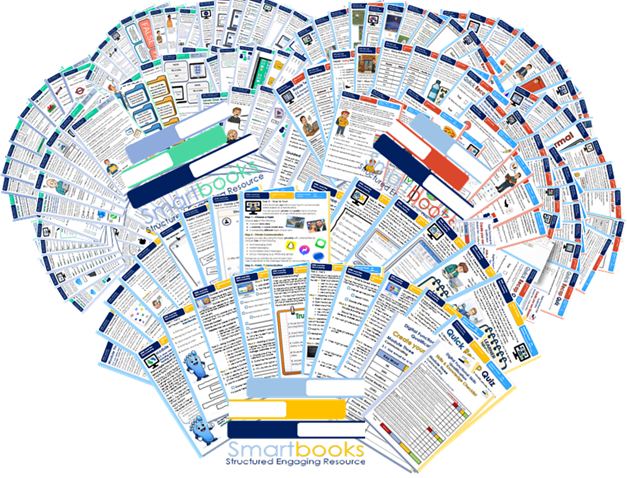

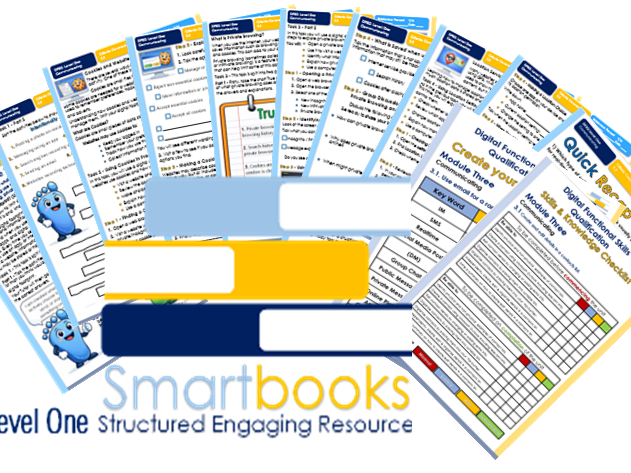
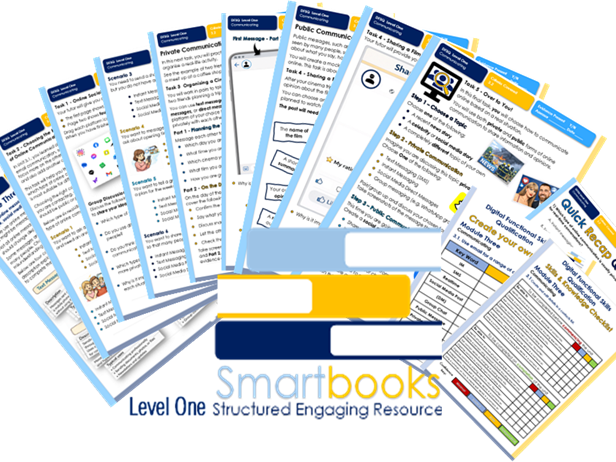
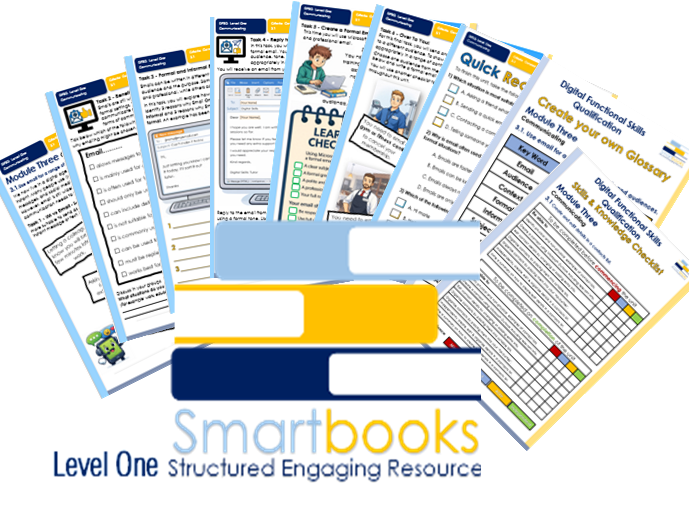
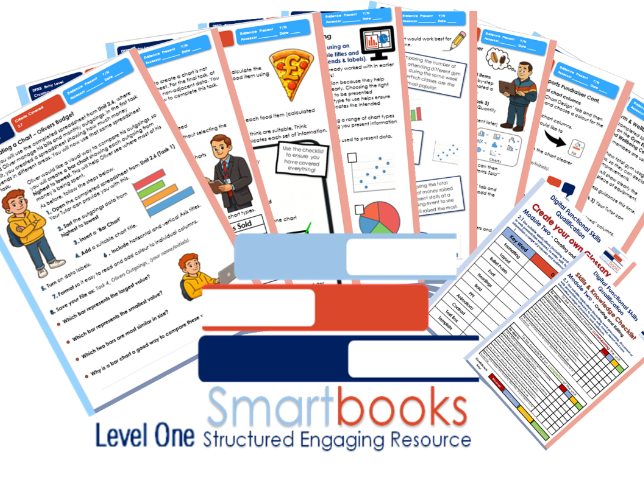
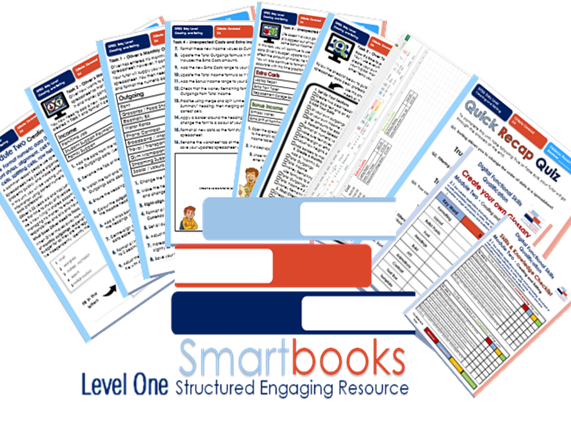
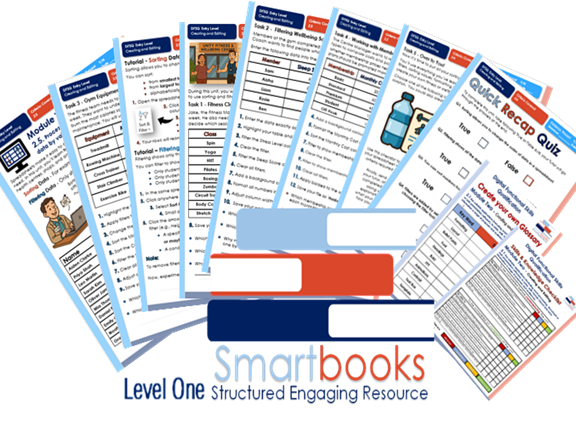
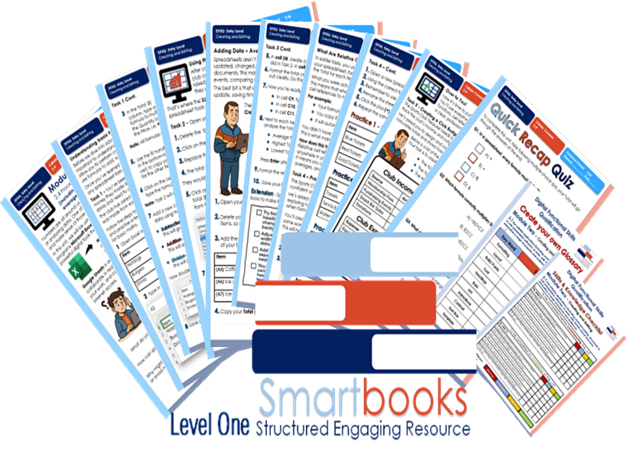
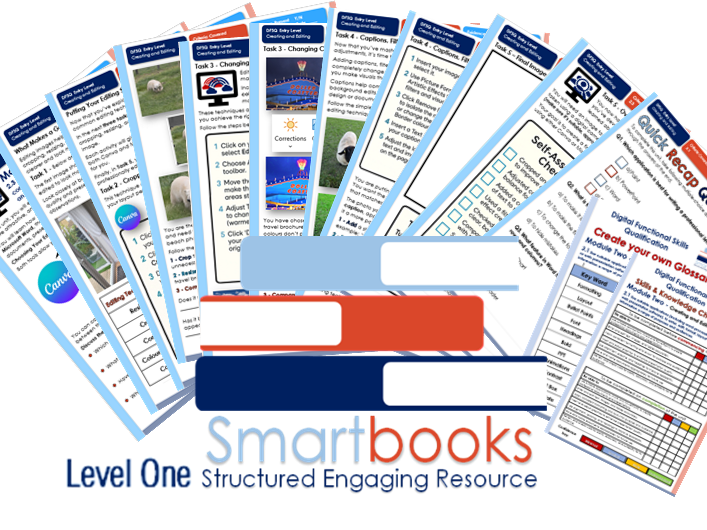
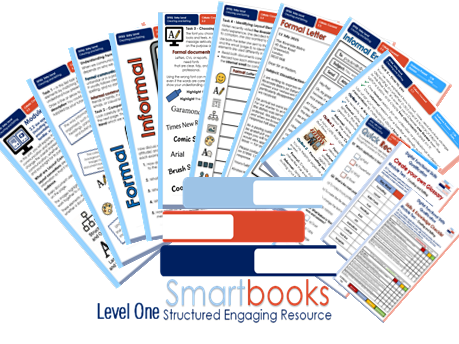
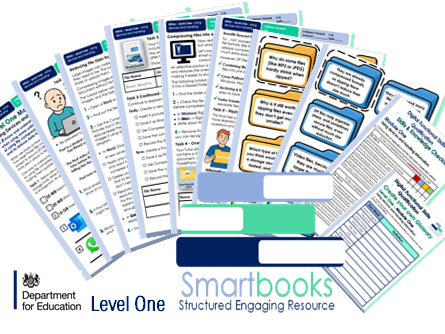
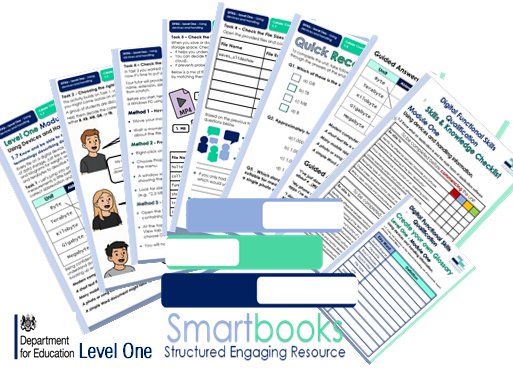
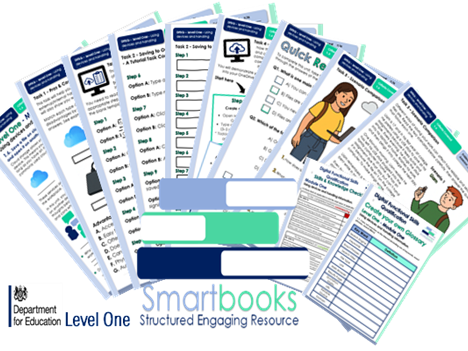
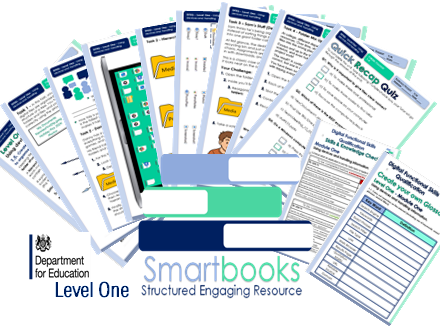
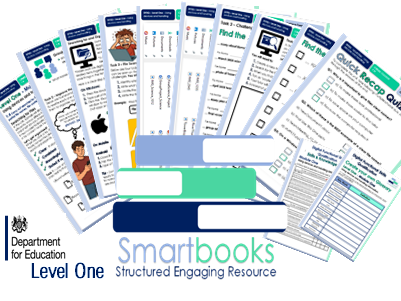
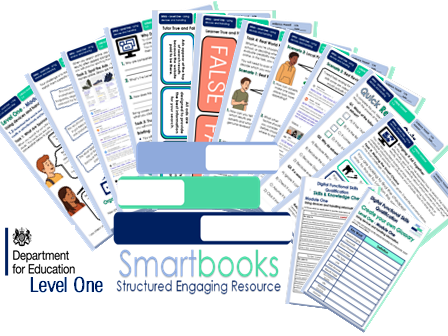


These resources have been created for those delivering the Digital Functional Skills Qualification at Level One which replaced the current Functional Skills ICT Qualification from 31st of July 2023.
The DFS qualification’s main purpose is to provide reliable evidence of a learner’s achievements against content that is relevant to the workplace and real life.
These resources provide a structured assessment in workbook form to evidence learner’s knowledge and skills as well as their ability to apply these in different contexts and demonstrate that all learning outcomes have been met.
The qualification itself is made up of five main skill areas (Modules) each with its own series of units.
The unit workbooks include various challenges, activities and tasks to prove learners understanding. Each page has a header that includes the individual outcomes covered and can be assessed easily and signed off.
This Bundle of resources includes all units for:
Module 1 - Using Devices
Module 2 - Creating & Editing
Module 3 - Communicating
They are broken down as follows:
Module 1 - Using Devices
Unit 1.1 – Carry out searches on the internet (including use of keywords, exact phrases, search filters)
Task 1 – Learners take on the role of an environmental journalist. They must carry out research into the effects of climate change on sea levels using three different keyword combinations. Results are discussed in small groups to evaluate which combinations were most effective and why
Task 2 – Learners search for specific exact phrases using quotation marks and record the URLs of matching web pages. The task helps improve the accuracy and speed of online searches.
Task 3 – A tutorial section introduces three key search filters: by date, file type, and website domain. Learners then complete a practical filter search task requiring them to apply each technique to locate trustworthy and up-to-date information online.
Task 4 – In a real-world scenario, learners support a friend applying for college by searching for information, downloadable resources, and official websites to answer a set of queries using the most appropriate search method.
Task 5 – A fast-paced search challenge featuring 18 diverse questions. Learners decide which search strategy to use for each, combining all three techniques (keywords, exact phrases, filters) to find accurate and reliable answers quickly.
Also included is a Glossary for learners to fill out and a Skills and Knowledge checklist to be completed before and after delivery of this unit. Guided Tutor Answers for relevant tasks are also included.
Unit 1.2 – Take account of currency, reliability and copyright when selecting information from the internet
Task 1 – Learners are introduced to key vocabulary and concepts such as ‘reliable source’, ‘copyright’, and ‘currency of information’. They then complete a guided matching activity to build their confidence with key definitions.
Task 2 – Learners analyse a series of online articles and websites using a simple evaluation framework (the CRAP Test). They rate each one based on currency, reliability, accuracy, and purpose, and justify their scores.
Task 3 – A research-based activity where learners compare two websites that offer different advice on the same topic. They evaluate the credibility of each site based on authorship, tone, and date of publication.
Task 4 – Learners explore copyright and fair use. Through a mix of scenarios, they decide when permission is needed, what content can be used freely, and how to avoid plagiarism in practical situations.
Task 5 – A multiple-choice recap quiz covering key terms, copyright, and reliability. This task helps learners reinforce their understanding, check progress, and apply knowledge in a quick, confidence-building format.
Also included is a Glossary for learners to complete and a Skills and Knowledge Checklist to be filled in before and after delivery of this unit.
Guided Tutor Answers for relevant tasks are also included.
Unit 1.3 – Understand that search results may include sponsored results or advertisements and be able to recognise these
Task 1 – Learners are introduced to the difference between sponsored and organic results through a guided example. They complete a matching activity to identify and reinforce the key terms.
Task 2 – A practical “spot the ads” activity where learners examine a set of trainer search results. They must distinguish paid adverts from organic results and reflect on why adverts appear.
Task 3 – A whole-class interactive “True or False” game. Learners test their understanding of how ads work, how search engines benefit, and how adverts are displayed, using tutor-led statement cards.
Task 4 – Learners explore real-world scenarios (e.g., choosing a smartphone, revision website, or takeaway) and evaluate search results for trustworthiness, reliability, and bias. They record and justify their reasoning.
Task 5 – A final challenge where learners carry out their own online search, screenshot results, identify adverts vs. reliable sources, and present their findings in a short presentation.
This is followed by a multiple-choice recap quiz.
Also included is a Glossary for learners to complete and a Skills and Knowledge Checklist to be filled in before and after delivery of this unit.
Guided Tutor Answers for relevant tasks are also included.
Unit 1.4 – Carry out searches for files (including on file names, partial file names, file content)
Task 1 – Learners explore the difference between suitable and unsuitable file names through a guided activity. They evaluate examples and discuss why good naming conventions make searching easier.
Task 2 – Learners rewrite poorly named files using clear and consistent naming conventions. They practise applying rules to improve organisation and retrieval.
Task 3 – A workbook-based file search challenge. Learners are presented with screenshots of different folders containing 15–20 files each. Using a challenge sheet, they must identify which folder contains the correct file, write the keywords they would use in the search bar, and record the file name.
Task 4 – A digital practice activity where learners apply their skills on a real device. They create a new folder, search for a set of sample files provided by the tutor (Link for OneDrive files included in Workbook), and move them into their “Task 4 – Located Files Complete” folder. This reinforces searching, organising, and folder management in a practical way.
Task 5 – A final multiple-choice recap quiz covering key knowledge and skills from the unit.
Also included is a Glossary for learners to complete and a Skills and Knowledge Checklist to be filled in before and after delivery of this unit.
Guided Tutor Answers for relevant tasks are also included.
Unit 1.5 – Create and use a hierarchical folder structure to organise files and use an appropriate file naming convention
Task 1 – A guided activity where learners compare digital folder structures to the structure of a tree. They identify main folders, subfolders, and files, then label a diagram to reinforce understanding.
Task 2 – A workbook-based scenario (“Danny’s Dilemma”) where learners reorganise a messy desktop by creating three main folders and suitable subfolders. They then arrange files into the correct places to show how a structured system improves organisation.
Task 3 – A device-based activity (“Sam’s Stuff”) where learners tidy up a single disorganised folder. They create three main folders and subfolders, move files appropriately, and provide a screenshot as evidence of their new structure. (A link to files for this Task is included)
Task 4 – A practical “Folder Mix Up” challenge. Learners identify intruder files (saved in the wrong folders) and correct them by moving each one to its proper location. This reinforces accuracy and attention to detail. (A link to files for this Task is included)
Task 5 – A final multiple-choice recap quiz covering key knowledge and skills from the unit.
Also included is a Glossary for learners to complete and a Skills and Knowledge Checklist to be filled in before and after delivery of this unit.
Guided Tutor Answers for relevant tasks are also included.
**Unit 1.6 – Save a file on cloud storage using one device and open it on another device.
**
Task 1 – A pros and cons matching activity where learners compare storage options (USB sticks, external/internal hard drives, and cloud services) to understand their advantages and disadvantages.
Task 2 – A step-by-step tutorial challenge where learners identify the correct instructions for saving a file to Microsoft OneDrive by choosing between accurate and misleading options.
Task 3 – Two real-life style scenarios (Liam and Maya) where learners answer questions to compare the risks of physical storage with the reliability of cloud storage.
Task 4 – A device-based practical task where learners create a short document, save it to OneDrive, and then access it from another device, providing screenshots as evidence of their skills.
Task 5 – A multiple-choice recap quiz covering the key knowledge and skills developed throughout the unit.
Also included is a Glossary for learners to complete and a Skills and Knowledge Checklist to be filled in before and after delivery of this unit.
Guided Tutor Answers for relevant tasks are also included.
Unit 1.7. Know and be able to appropriately use terminology (including bytes, kilobytes, megabytes, gigabytes, terabytes) describing data storage requirements.
This resource includes:
Task 1 – A matching activity where learners connect storage units (Bytes, Kilobytes, Megabytes, Gigabytes, Terabytes) with their abbreviations and descriptions.
Task 2 – A real-world scenario activity where learners fill in gaps in student conversations to apply storage terminology in everyday digital contexts.
Task 3 – A workbook-based task where learners match example file names, extensions, and sizes in a table, before adding the correct file type.
Task 4 – A device-based practical task where learners check the properties of 6 provided files to record file name, extension, type, and size, developing confidence in managing real files.
Task 5 – A 9-question multiple-choice recap quiz that checks knowledge and understanding of storage units, file extensions, and practical applications.
Also included is a Glossary for learners to complete and a Skills and Knowledge Checklist to be filled in before and after delivery of this unit.
Guided Tutor Answers for relevant tasks are also included.
Unit 1.8 – Know and understand limitations on file sizes when using some online services, and the benefits of using file compression to make effective use of storage capacity and to reduce data transfer times.
Task 1 – A ranking activity where learners order different online services (e.g. Gmail, Outlook, WhatsApp, Google Drive, OneDrive, Dropbox) by their file size or storage limits, developing awareness of restrictions when sharing files.
Task 2 – A real-world case study where a student named Paul tries to email a video that is too large. Learners explore the problem, suggest possible solutions, and reflect on how to share files effectively when size limits are reached.
Task 3 – A workbook-based practical task where learners compress images inside a Word/Docs file, record file sizes before and after, and reflect on the impact of large images in documents.
Task 4 – A hands-on device activity using a “Sports Day” folder. Learners create a zipped folder, compare original and compressed sizes, and discuss the broader benefits of ZIP files beyond reducing space (e.g. organisation, faster transfers, backups).
Task 5 – A flashcard quiz game where learners revise all key points from the unit, testing their knowledge of file size limits, compression, and the real-world advantages of using ZIP files.
Also included is a Glossary for learners to complete and a Skills and Knowledge Checklist to be filled in before and after delivery of this unit.
Guided Tutor Answers for relevant tasks are also included.
Unit 1.9. Use online resources to identify solutions to common technical problems (including when to reinstall an application, change Wi-Fi settings, change a system or software setting) and apply the solution.
Task 1 – Searching for Solutions
Learners are introduced to five everyday technical problems and practise writing effective search queries using clear keywords to find possible solutions online.
Task 2 – Safe or Poor Advice
A realistic help-request scenario where learners identify which pieces of advice are safe and which are unreliable, developing their ability to assess online information.
Task 3 – Finding the Most Helpful Advice
Learners take on a short scenario where a student named Cassie needs help fixing her Wi-Fi connection. They visit several real websites, compare the advice offered, take a screenshot of the most helpful information, and explain why they would recommend that source.
Task 4 – Finding Your Own Reliable Source
A practical activity using “Tech Problem” and “Solution” cards. Learners independently research their allocated issue, record their solution, and then participate in reinforcement games such as Mix and Match or Memory Match.
Task 5 – Quick Recap Quiz
A nine-question multiple-choice quiz that checks learners’ understanding of safe searching, reliable sources, and troubleshooting common digital problems.
**Module 2 - Creating & Editing **
Unit 2.1 - Use a suitable application to enter, edit and format text
Task 1 – Choosing the Right Tool
Learners discuss and identify when to use different applications such as Word or PowerPoint, applying this knowledge to everyday real-life scenarios.
Task 2 – Common Mistakes and Rules to Remember
Learners explore common formatting errors made when creating digital documents or presentations and suggest suitable solutions to improve clarity and audience suitability.
Task 3 – Spencer’s CV
Learners support fictional candidate Spencer Green in reformatting his CV to make it look professional and appropriate for a potential employer. (Tutor guidance included)
Task 4 – Spencer’s Interview Presentation
After securing an interview, Spencer creates a 6-slide PowerPoint about his skills. Learners review and correct common presentation mistakes to improve layout, consistency, and audience impact. (Tutor example presentation included)
Task 5 – Over to You
Learners independently create their own Word document or PowerPoint presentation based on real-world scenarios, demonstrating their ability to use digital applications effectively and professionally. Includes a learner checklist for self-assessment and tutor feedback section.
A 10-question multiple-choice quiz to consolidate understanding of formatting, editing, layout, and audience awareness. (Answer sheet included)
**Unit 2.2 - Use appropriate layout conventions for information (including formal and informal
communication, presentation, advertisement) and audiences (including familiar,
unfamiliar audience). **
Task 1 – Layout Elements
Learners are introduced to the key layout elements used to create clear, professional documents. They match each element (such as tone, font, spacing, and alignment) with its correct description to build understanding.
Task 2 – Formal vs Informal Communication
Learners discuss the difference between formal and informal communication, exploring how tone and language change depending on the audience and purpose.
Task 3 – Choosing the Right Font
Learners identify appropriate fonts for formal and informal documents, using colour-coded highlighters to separate professional from fun or casual styles.
Task 4 – Identifying Layout Conventions
Through a realistic scenario featuring fictional character Kirsten, learners compare a formal complaint letter and an informal email. They identify and record how the nine key layout elements are used differently in each.
Task 5 – Over to You
Learners apply their knowledge by creating both a formal and informal document from one of three themed options — a theatre review, café visit, or charity event promotion. This allows them to demonstrate tone, structure, and audience awareness creatively and independently.
Task 6 – True or False Quiz
A 10-question quiz helps learners review and consolidate their understanding of layout conventions, tone, and suitability for purpose and audience.
Unit 2.3 - Edit (including caption, crop, resize, change contrast, change colour balance) an image using an appropriate tool.
Task 1 – What Makes a Good Image?
Learners explore how small edits such as cropping, resizing, and adjusting colour or contrast can improve image quality and presentation. They compare two versions of the same image and record what changes have been made and why.
Task 2 – Cropping and Resizing
Learners practise cropping and resizing images using Canva and Microsoft Word. Through a travel brochure scenario, they learn how to focus on key details, improve composition, and make images fit specific layouts.
Task 3 – Changing Contrast and Colour Balance
Learners develop their technical editing skills by adjusting brightness, contrast, and colour balance to enhance tone and visibility. They compare before-and-after versions to see how lighting and warmth affect image mood.
Task 4 – Captions, Filters, and Backgrounds
Learners build on previous skills by adding captions, experimenting with filters, and adjusting backgrounds. They apply creative editing techniques to make images look polished and professional within a real-world design scenario.
Task 5 – Over to You!
Learners put everything they’ve learned into practice by creating a final edited image using either Canva or Word. They are encouraged to take or source an appropriate image, apply all editing techniques, and submit their final design with a self-assessment checklist and tutor feedback section.
A 10-question Level 1 quiz helps learners review and consolidate their understanding of image editing tools.
Unit 2.4: Process numeric data using simple formulae (including sum, subtraction, multiplication, division, maximum, minimum, average) using relative cell references.
Task 1 – Understanding Basic Formulas
Learners are introduced to the structure of simple formulas in spreadsheets. Using a fundraising scenario, they enter data, calculate totals, and use multiplication formulas to work out how much was made from each item sold.
Task 2 – Using the SUM Function
Learners move on to faster, more efficient methods of adding values using the SUM function. They also practise essential spreadsheet formatting such as bold text, borders, and applying currency formats.
Task 3 – Averages, Highest and Lowest
Learners extend their skills by using AVERAGE, MAX, and MIN to analyse sales data. They explore how functions help identify trends, compare results, and summarise findings with automatic calculations.
Task 4 – Practising Relative Cell References
Learners explore how formulas change when copied down or across cells, using several short practice tables to master relative cell references. They create multiple sheets, rename tabs, and practise accurate formula copying.
Task 5 – Over to You! Creating a Budget Spreadsheet
Learners apply everything from the unit to create a complete monthly budget spreadsheet for a sports club. They calculate:
• total income
• total expenses
• remaining balance (profit or loss)
A learner checklist is included to promote independence and ensure all success criteria have been met.
9 Question Multiple-Choice Quiz
Unit 2.5: Process (including sort, filter) numeric data by values in a column.
Task 1 – Sorting Fitness Class Attendance
Learners enter fitness class data and practise sorting values both from largest to smallest and smallest to largest. They apply formatting techniques such as bold headings, borders, and adjusting column widths. They also identify the most and least attended classes and explain why these comparisons are important in a real gym setting.
Task 2 – Filtering Wellbeing Scores
Using data collected by the wellbeing coach, learners apply a range of filters to locate members who may need additional support. They filter by conditions such as stress levels and sleep scores, explore how filters reveal specific information quickly, and format their tables for clarity.
Task 3 – Sorting & Filtering Gym Equipment Usage
Learners combine sorting and filtering to analyse gym equipment usage. They sort by minutes used and calories burned, filter machines based on usage thresholds, and consider how this information helps plan maintenance and gym layouts. This task reinforces the power of spreadsheets for interpreting fitness trends.
Task 4 – Working with Membership Data
Learners organise membership costs and popularity figures, applying filters and currency formatting. They compare membership plans and take part in a short team discussion to justify decisions—ideal for supporting speaking and listening development alongside digital skills.
Task 5 – Over to You! Creating a Wellbeing Dataset
Learners independently create their own dataset using a chosen wellbeing or fitness theme. They must include clear headings, multiple numeric columns, sorting, filtering, and an explanation of what their data shows. A learner checklist supports independence and ensures all success criteria are met.
10-question True/False recap quiz
Spreadsheets Included:
This resource includes learner spreadsheets for all tasks and tutor-completed spreadsheets for Tasks 1–4 (with correct figures only).
Unit 2.6 Format numeric data (including font sizes, font styles, alignment, cell formatting, merging cells, splitting cells, row height, column width).
Task 1 – Formatting Oliver’s Monthly Outgoings
Learners enter Oliver’s expenses and apply key formatting skills, including bold headings, currency formatting, alignment, and column adjustments. This introduces clear and professional presentation of financial data.
Task 2 – Adding Income Data
Learners add Oliver’s income to the same spreadsheet, matching font styles, applying colour-coded headings, centre-aligning amounts, and using borders. They learn the importance of consistency when presenting financial information.
Task 3 – Creating a Monthly Summary with Formulas
Learners build a “Monthly Summary” section and use SUM formulas to calculate total outgoings, total income, and money remaining. They merge headings, format totals, and begin to understand how spreadsheets support budgeting.
Task 4 – Managing Unexpected Changes
Learners add “Extra Costs” and “Bonus Income” to simulate real-life financial changes. They update formulas, adjust layouts, apply borders, and practise merging and unmerging cells. This develops flexibility and problem-solving within spreadsheets.
Task 5 – Over to You! Creating a Personal Budget
Learners design their own simple budget spreadsheet, using headings, formatting, numeric data, and formulas. A structured checklist supports independent working and ensures success criteria are met.
Spreadsheets Included:
This resource includes a learner spreadsheet for all tasks and tutor-completed spreadsheets for Tasks 1–4 (with correct figures only).
Unit 2.7 Chart a single series of numeric data using an appropriate type of chart and apply suitable titles and labels (including chart titles, axis titles, data legends and data labels).
Task 1 – Identifying Chart Types
Learners explore common chart types and match them to different data scenarios, developing an understanding of when each chart is most suitable.
Task 2 – Creating a Column Chart: Sports Fundraiser
Learners create a column chart using existing spreadsheet data, adding titles, axis labels, and data labels with clear step-by-step guidance.
Task 3 – Creating a Pie Chart with a Legend: Gym & Wellbeing Centre
Learners create a pie chart to show proportions and practise using data labels and legends, with reduced guidance to build confidence.
Task 4 – Creating a Bar Chart: Oliver’s Budget
Learners sort financial data and create a bar chart to compare outgoings, applying titles, labels, and formatting for clarity.
Task 5 – Over to You! Independent Chart Creation
Learners work independently using a college canteen scenario, calculate totals using a SUM function, select non-adjacent data, and create two different charts. A checklist supports independent working. Followed by a Recap True//False Quiz
Module 3 - Communicating
Unit 3.1 Use email for a range of contexts and audiences.
Task 1 – IM vs Email
Learners explore different communication scenarios and decide whether email or instant messaging is the most appropriate method, developing an understanding of context and audience.
Task 2 – Benefits of Using Email
Learners identify and explain valid reasons why email may be chosen over instant messaging, focusing on formal communication, record keeping, and professional use.
Task 3 – Formal and Informal Emails
Learners compare examples of formal and informal emails, identifying differences in tone, language, and structure, and explaining why each is appropriate for its audience.
Task 4 – Replying to a Formal Email
Learners use Microsoft Outlook to reply to a tutor email using a formal tone, supported by sentence starters and a clear checklist to guide structure and content.
Task 5 – Creating a Formal Email
Learners create a formal email requesting an assignment extension, applying what they have learned about audience, tone, and email structure. A learner checklist supports independent working.
Task 6 – Over to You! Independent Email Writing
Learners independently write a formal email to a different audience, choosing from three real-life scenarios:
• Cancelling a gym membership
• Making a complaint to a restaurant
• Sending a thank-you email to a workplace supervisor
Learners write between 80–120 words and use a checklist to ensure professionalism and suitability for the chosen audience.
Followed by a 10-question multiple-choice recap quiz to reinforce learning.
Unit 3.2 Use online messages (including instant message, text message, social media) for a range of contexts and audiences.
Task 1 – Online Social Communication
Learners identify types of online communication by matching platform icons to categories such as text messaging, instant messaging, social media posts, and direct messages, followed by a short group discussion.
Task 2 – Choosing the Right Type of Online Communication
Learners work through real-life scenarios to choose the most appropriate type of online communication, explaining their choices and considering audience, context, and public versus private messages.
Task 3 – Private Communication: Organising a Cinema Trip
Learners work in pairs to plan a cinema trip using private communication methods, including text messages, instant messages, and direct messages. Screenshots are used as evidence, with reflective questions included.
Task 4 – Public Communication: Sharing a Film Review
Learners create a mock social media post to review a film, including a summary, opinion, rating, and recommendation. A template is provided, and no online posting is required.
Task 5 – Over to You! Independent Communication Task
Learners choose a topic and demonstrate understanding by discussing it privately using an appropriate messaging method and sharing their opinion publicly through a mock social media post.
These tasks are followed by a 10-question multiple-choice recap quiz to reinforce learning.
Unit 3.3 Know what steps can be taken to limit a digital footprint (including use of privacy tools to manage cookies and website tracking, private browsing, restricting GPS information).
Task 1 – What Is a Digital Footprint?
Learners are introduced to the concept of a digital footprint and identify everyday online activities that create one. Activities help learners recognise intentional and unintentional digital footprints and build a foundation for managing online privacy.
Task 2 – Cookies and Website Tracking
Learners use a digital device to explore real cookie pop-ups on websites. They review cookie options, make privacy choices, and explain how managing cookies can help limit a digital footprint.
Task 3 – Private Browsing
Learners complete a short True/False activity to check understanding, then open and use private browsing in practice. They identify what information is and is not saved and discuss the limits of private browsing.
Task 4 – Location Services and GPS Settings
Learners review location and GPS settings on a device, explore app location permissions, and decide when location access is appropriate. Reflection questions link location sharing to digital footprints and privacy.
The tasks are followed by a 10-question multiple-choice recap quiz to reinforce learning.
All workbooks include guided tutor answers for relevant tasks. Each unit also includes a Skills and Knowledge checklist and a Glossary for learners to complete before, throughout and after delivery of this units.
All Workbooks in this DFSQ series are available on TES.
This resource is currently in a PDF file format. Word versions are available upon purchase of the PDF, please message me directly for these at SmartbooksEd@outlook.com.
Something went wrong, please try again later.
This resource hasn't been reviewed yet
To ensure quality for our reviews, only customers who have purchased this resource can review it
Report this resourceto let us know if it violates our terms and conditions.
Our customer service team will review your report and will be in touch.