


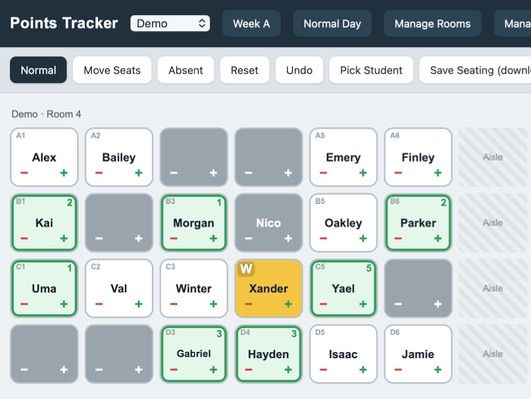


A seating plan shows your students’ first names. Tap a name to award positive or negative points during the lesson. At the end of the lesson, save the log to the daily record; at the end of the day, download that record for filing.
Set up
Store the HTML file in OneDrive, open it in your browser, and bookmark it. Closing the tab mid-lesson deletes that lesson’s data, so always click End Lesson first. Keep the app open in a tab and switch away when needed.
Manage Rooms
Create a classroom layout for each room. Each grid square can be a desk, aisle, or unused space. Desks use Battleship-style references: rows A, B, C etc. and columns 1, 2, 3 etc.
Manage Classes
Add each class and select its room, for example: 11A1 Room 4 or 8A3 Room 13.
Manage Timetable
Choose a one- or two-week timetable, enter lesson start times, then complete each day using the drop-downs. The app anticipates the current seating plan, with a manual override. You can also add an alternative timetable, such as for exam season.
Seating Plan
Import a CSV with: Class,Seat,Firstname,Lastname. Create it in Excel with these four columns, then export as CSV. The app flags errors, such as students assigned to seats outside the room layout.
Manual adjustments
Fine-tune names under Manage Classes—for example, display Benedict as Benny, or distinguish Hannah F and Hannah T. You can also edit class names and room layouts.
Move Seats
Click Move Seats. Select a student, then an empty desk to move them; select another student to swap seats. Select an empty desk first to add a new student. Click Save Seating to download the updated CSV, then Normal to exit.
Absent Students
Click Absent, then tap absent students. They are greyed out and excluded from random selection and behaviour points. Tap again to restore them, then click Normal to exit.
Behaviour
Use the +/− beneath each name to award positive points or sanctions independently. Sanctions progress through Warn, Move, and Remove; customise these labels in Settings. The app logs the time of every point. Use Undo to reverse actions, or Reset then select a student to erase their lesson points.
Pick Student
Choose a student at random, instantly or with animation. The app slightly favours students with sanctions, giving them a chance to redeem themselves.
End Lesson
Tap End Lesson to save the lesson’s points to the daily log.
Daily Report
At the end of the day, tap Daily Report to download a summary of every student’s points, ready to transfer into your school system.
Something went wrong, please try again later.
This resource hasn't been reviewed yet
To ensure quality for our reviews, only customers who have purchased this resource can review it
Report this resourceto let us know if it violates our terms and conditions.
Our customer service team will review your report and will be in touch.
£1.00