Digital Functional Skills Level One - Module 2 Complete 2.1 – 2.7 BUNDLE
Resource Bundle


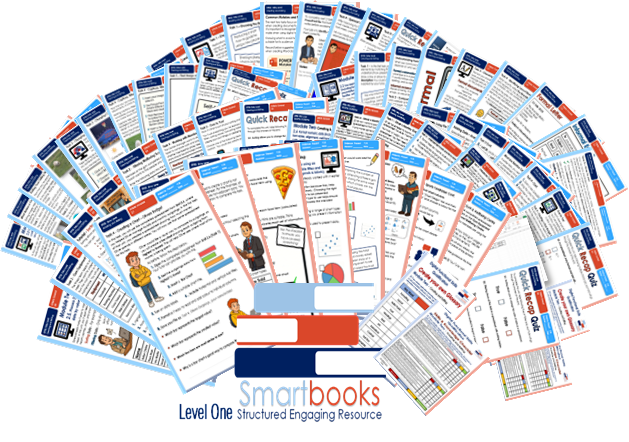

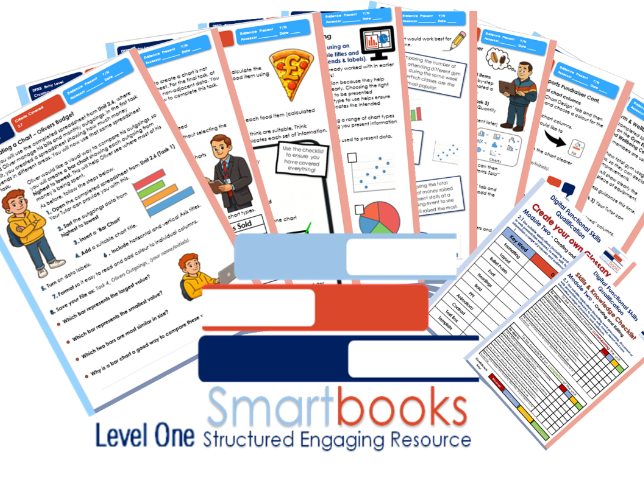
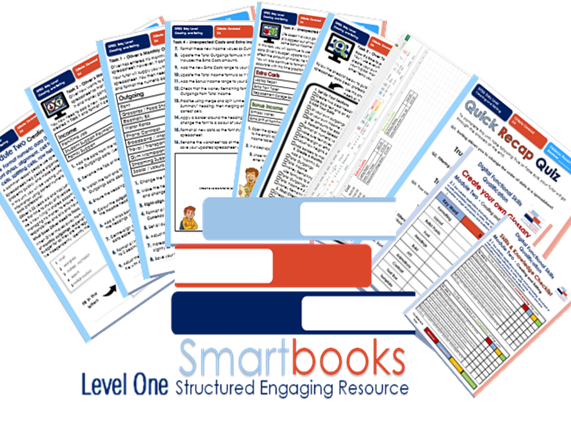
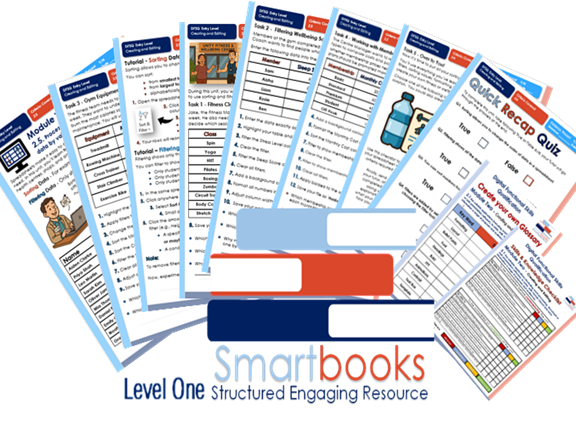
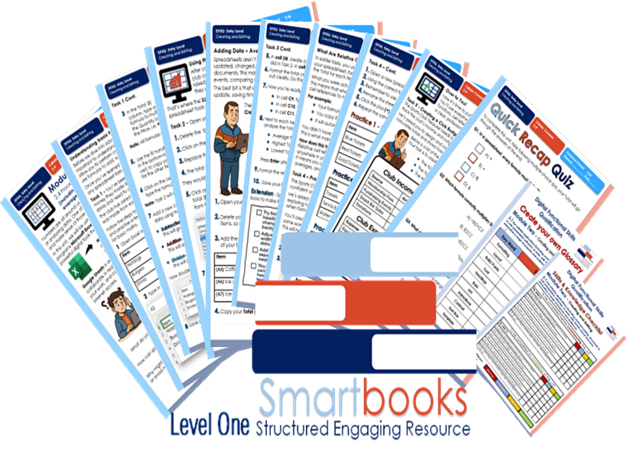
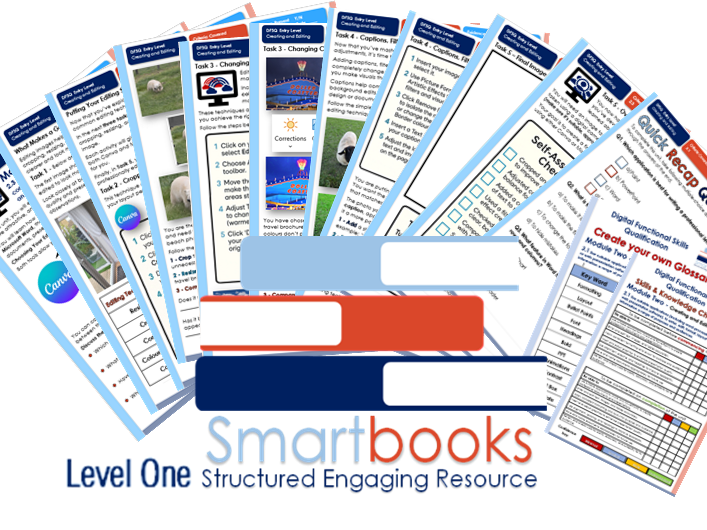
These resources have been created for those delivering the Digital Functional Skills Qualification at Level 1, which replaces the current Functional Skills ICT Qualification.
The DFS qualification’s main purpose is to provide reliable evidence of a learner’s achievements against content that is relevant to the workplace and real life.
These resources provide a structured assessment in workbook form to evidence learner knowledge and skills, as well as their ability to apply these in different contexts and demonstrate that all learning outcomes have been met.
The qualification itself is made up of five main skill areas (Modules), each with its own series of units.
The unit workbooks include various challenges, activities and tasks to prove learners’ understanding. Each page has a header that includes the individual outcomes covered and can be assessed easily and signed off.
This Bundle of resources include all 9 units for Module 2 - Creating and Editing. They are broken down as follows:
Module 2 - Creating and Editing - 2.1 - Use a suitable application to enter, edit and format text
This resource includes:
Task 1 – Choosing the Right Tool
Learners discuss and identify when to use different applications such as Word or PowerPoint, applying this knowledge to everyday real-life scenarios.
Task 2 – Common Mistakes and Rules to Remember
Learners explore common formatting errors made when creating digital documents or presentations and suggest suitable solutions to improve clarity and audience suitability.
Task 3 – Spencer’s CV
Learners support fictional candidate Spencer Green in reformatting his CV to make it look professional and appropriate for a potential employer. (Tutor guidance included)
Task 4 – Spencer’s Interview Presentation
After securing an interview, Spencer creates a 6-slide PowerPoint about his skills. Learners review and correct common presentation mistakes to improve layout, consistency, and audience impact. (Tutor example presentation included)
Task 5 – Over to You
Learners independently create their own Word document or PowerPoint presentation based on real-world scenarios, demonstrating their ability to use digital applications effectively and professionally. Includes a learner checklist for self-assessment and tutor feedback section.
Quick Recap Quiz
A 10-question multiple-choice quiz to consolidate understanding of formatting, editing, layout, and audience awareness. (Answer sheet included)
**Module 2 - Creating and Editing - 2.2 - Use appropriate layout conventions for information (including formal and informal
communication, presentation, advertisement) and audiences (including familiar,
unfamiliar audience). **
This resource includes:
Task 1 – Layout Elements
Learners are introduced to the key layout elements used to create clear, professional documents. They match each element (such as tone, font, spacing, and alignment) with its correct description to build understanding.
Task 2 – Formal vs Informal Communication
Learners discuss the difference between formal and informal communication, exploring how tone and language change depending on the audience and purpose.
Task 3 – Choosing the Right Font
Learners identify appropriate fonts for formal and informal documents, using colour-coded highlighters to separate professional from fun or casual styles.
Task 4 – Identifying Layout Conventions
Through a realistic scenario featuring fictional character Kirsten, learners compare a formal complaint letter and an informal email. They identify and record how the nine key layout elements are used differently in each.
Task 5 – Over to You
Learners apply their knowledge by creating both a formal and informal document from one of three themed options — a theatre review, café visit, or charity event promotion. This allows them to demonstrate tone, structure, and audience awareness creatively and independently.
Task 6 – True or False Quiz
A 10-question quiz helps learners review and consolidate their understanding of layout conventions, tone, and suitability for purpose and audience.
Module 2 - Creating and Editing - 2.3 - Edit (including caption, crop, resize, change contrast, change colour balance) an image using an appropriate tool.
This resource includes:
Task 1 – What Makes a Good Image?
Learners explore how small edits such as cropping, resizing, and adjusting colour or contrast can improve image quality and presentation. They compare two versions of the same image and record what changes have been made and why.
Task 2 – Cropping and Resizing
Learners practise cropping and resizing images using Canva and Microsoft Word. Through a travel brochure scenario, they learn how to focus on key details, improve composition, and make images fit specific layouts.
Task 3 – Changing Contrast and Colour Balance
Learners develop their technical editing skills by adjusting brightness, contrast, and colour balance to enhance tone and visibility. They compare before-and-after versions to see how lighting and warmth affect image mood.
Task 4 – Captions, Filters, and Backgrounds
Learners build on previous skills by adding captions, experimenting with filters, and adjusting backgrounds. They apply creative editing techniques to make images look polished and professional within a real-world design scenario.
Task 5 – Over to You!
Learners put everything they’ve learned into practice by creating a final edited image using either Canva or Word. They are encouraged to take or source an appropriate image, apply all editing techniques, and submit their final design with a self-assessment checklist and tutor feedback section.
True or False Recap Quiz
A 10-question Level 1 quiz helps learners review and consolidate their understanding of image editing tools.
Module 2 – Creating and Editing – 2.4: Process numeric data using simple formulae (including sum, subtraction, multiplication, division, maximum, minimum, average) using relative cell references.
Task 1 – Understanding Basic Formulas
Learners are introduced to the structure of simple formulas in spreadsheets. Using a fundraising scenario, they enter data, calculate totals, and use multiplication formulas to work out how much was made from each item sold.
Task 2 – Using the SUM Function
Learners move on to faster, more efficient methods of adding values using the SUM function. They also practise essential spreadsheet formatting such as bold text, borders, and applying currency formats.
Task 3 – Averages, Highest and Lowest
Learners extend their skills by using AVERAGE, MAX, and MIN to analyse sales data. They explore how functions help identify trends, compare results, and summarise findings with automatic calculations.
Task 4 – Practising Relative Cell References
Learners explore how formulas change when copied down or across cells, using several short practice tables to master relative cell references. They create multiple sheets, rename tabs, and practise accurate formula copying.
Task 5 – Over to You! Creating a Budget Spreadsheet
Learners apply everything from the unit to create a complete monthly budget spreadsheet for a sports club. They calculate:
• total income
• total expenses
• remaining balance (profit or loss)
A learner checklist is included to promote independence and ensure all success criteria have been met.
9 Question Multiple-Choice Quiz
Module 2 – Creating and Editing – 2.5: Process (including sort, filter) numeric data by values in a column.
Task 1 – Sorting Fitness Class Attendance
Learners enter fitness class data and practise sorting values both from largest to smallest and smallest to largest. They apply formatting techniques such as bold headings, borders, and adjusting column widths. They also identify the most and least attended classes and explain why these comparisons are important in a real gym setting.
Task 2 – Filtering Wellbeing Scores
Using data collected by the wellbeing coach, learners apply a range of filters to locate members who may need additional support. They filter by conditions such as stress levels and sleep scores, explore how filters reveal specific information quickly, and format their tables for clarity.
Task 3 – Sorting & Filtering Gym Equipment Usage
Learners combine sorting and filtering to analyse gym equipment usage. They sort by minutes used and calories burned, filter machines based on usage thresholds, and consider how this information helps plan maintenance and gym layouts. This task reinforces the power of spreadsheets for interpreting fitness trends.
Task 4 – Working with Membership Data
Learners organise membership costs and popularity figures, applying filters and currency formatting. They compare membership plans and take part in a short team discussion to justify decisions—ideal for supporting speaking and listening development alongside digital skills.
Task 5 – Over to You! Creating a Wellbeing Dataset
Learners independently create their own dataset using a chosen wellbeing or fitness theme. They must include clear headings, multiple numeric columns, sorting, filtering, and an explanation of what their data shows. A learner checklist supports independence and ensures all success criteria are met.
10-question True/False recap quiz
Spreadsheets Included:
This resource includes learner spreadsheets for all tasks and tutor-completed spreadsheets for Tasks 1–4 (with correct figures only).
Module 2 – Creating and Editing – 2.6 Format numeric data (including font sizes, font styles, alignment, cell formatting, merging cells, splitting cells, row height, column width).
Task 1 – Formatting Oliver’s Monthly Outgoings
Learners enter Oliver’s expenses and apply key formatting skills, including bold headings, currency formatting, alignment, and column adjustments. This introduces clear and professional presentation of financial data.
Task 2 – Adding Income Data
Learners add Oliver’s income to the same spreadsheet, matching font styles, applying colour-coded headings, centre-aligning amounts, and using borders. They learn the importance of consistency when presenting financial information.
Task 3 – Creating a Monthly Summary with Formulas
Learners build a “Monthly Summary” section and use SUM formulas to calculate total outgoings, total income, and money remaining. They merge headings, format totals, and begin to understand how spreadsheets support budgeting.
Task 4 – Managing Unexpected Changes
Learners add “Extra Costs” and “Bonus Income” to simulate real-life financial changes. They update formulas, adjust layouts, apply borders, and practise merging and unmerging cells. This develops flexibility and problem-solving within spreadsheets.
Task 5 – Over to You! Creating a Personal Budget
Learners design their own simple budget spreadsheet, using headings, formatting, numeric data, and formulas. A structured checklist supports independent working and ensures success criteria are met.
Spreadsheets Included:
This resource includes a learner spreadsheet for all tasks and tutor-completed spreadsheets for Tasks 1–4 (with correct figures only).
**Module 2 – Creating and Editing – 2.7 Chart a single series of numeric data using an appropriate type of chart and apply suitable titles and labels (including chart titles, axis titles, data legends and data labels).
**
Task 1 – Identifying Chart Types
Learners explore common chart types and match them to different data scenarios, developing an understanding of when each chart is most suitable.
Task 2 – Creating a Column Chart: Sports Fundraiser
Learners create a column chart using existing spreadsheet data, adding titles, axis labels, and data labels with clear step-by-step guidance.
Task 3 – Creating a Pie Chart with a Legend: Gym & Wellbeing Centre
Learners create a pie chart to show proportions and practise using data labels and legends, with reduced guidance to build confidence.
Task 4 – Creating a Bar Chart: Oliver’s Budget
Learners sort financial data and create a bar chart to compare outgoings, applying titles, labels, and formatting for clarity.
Task 5 – Over to You! Independent Chart Creation
Learners work independently using a college canteen scenario, calculate totals using a SUM function, select non-adjacent data, and create two different charts. A checklist supports independent working. Followed by a Recap True//False Quiz
Spreadsheets Included: This resource includes learner spreadsheets for all tasks and tutor-completed example spreadsheets for Tasks 2–5, demonstrating expected outcomes and supporting assessment and delivery.
Also included with all Units is a Glossary for learners to complete and a Skills and Knowledge Checklist to be filled in before and after delivery of this unit.
Guided Tutor Answers for relevant tasks are also included.
All resources in this bundle are in a PDF file format.
Word versions are available upon purchase, please message me directly for these at SmartbooksEd@outlook.com.
Something went wrong, please try again later.
This resource hasn't been reviewed yet
To ensure quality for our reviews, only customers who have purchased this resource can review it
Report this resourceto let us know if it violates our terms and conditions.
Our customer service team will review your report and will be in touch.