


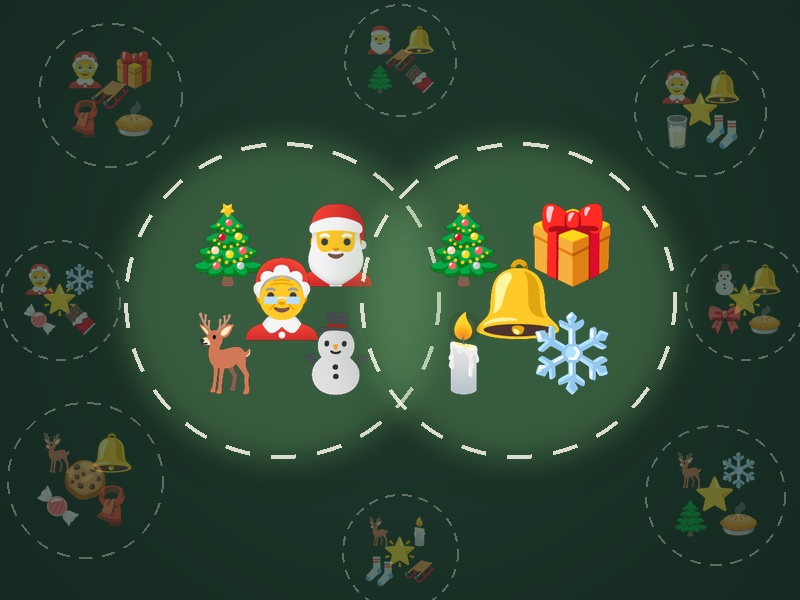
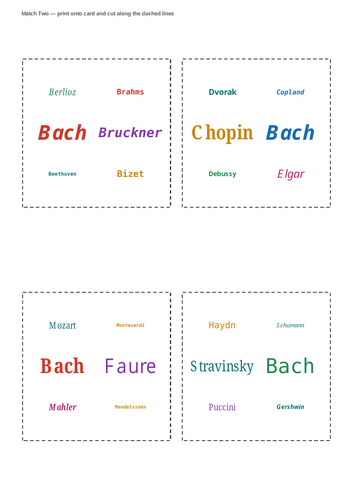


A fast 2-player matching race for any topic. Type your own words, emoji, or pictures — the app builds and prints out the whole tile set automatically.
Match Two is a self-contained, offline HTML app for the interactive whiteboard. Enter any list of words for your topic and it builds a full set of matching tiles using the same combinatorial principle behind Dobble/Spot It — any two tiles always share exactly one match. Two players race to spot and tap it first.
Words can be plain text, emoji, or your own pictures, and can be entered as translation pairs (bonjour = hello) for MFL practice. Choose circular or square tiles and one of three tile layouts, then either play on screen or print the entire set as a ready-to-cut PDF for a physical, screen-free version of the game.
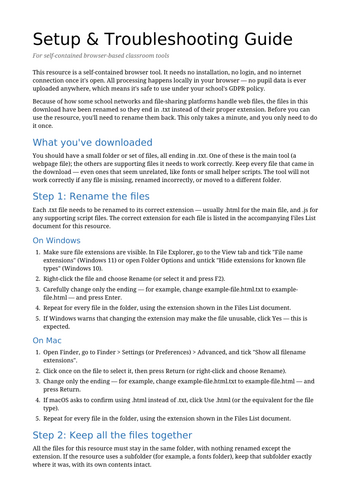
Runs entirely offline in the browser with no installation and no data collection of any kind — nothing here needs an internet connection, a login, or ever touches pupil data.
Technical note: picture tiles & local images
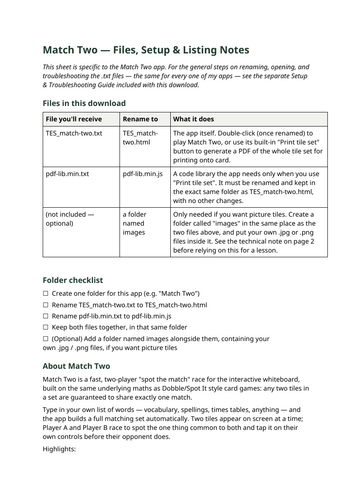
If you use the optional picture-tile feature — naming a tile object after an image file, e.g. koala.jpg — the app needs to load that file from an “images” folder placed next to the .html file.
Most browsers, Chrome in particular, block a web page from loading local files like this when the page has simply been double-clicked open. This is a browser security restriction, not a fault in the app, and it cannot be switched off from within the app.
In practice:
• Plain word tiles and emoji tiles will always work, however the file is opened.
• Picture tiles are likely to work if the app is opened from a network location or web address using Right-click “open in browser” — for example, hosted on a school intranet or server — because that counts as the page being “served” rather than opened directly.
• Picture tiles may fail silently (the tile simply appears blank, rather than the app crashing) if the file is opened by double-clicking it directly from a folder, which is the most common way of opening these files.
If picture tiles don’t appear, try opening the folder through a simple local web server instead of double-clicking the file directly. Please test this on your own school’s setup before relying on it for a lesson — it depends on your browser and network, not on this app.
Recommended image file types: JPG or PNG — both are supported directly. JPG keeps file sizes (and the printed PDF) smaller and is the better choice for ordinary photographs; use PNG only if you specifically need transparency. GIF and WEBP files will display on screen but are not recommended for the printable PDF version.
Something went wrong, please try again later.
This resource hasn't been reviewed yet
To ensure quality for our reviews, only customers who have purchased this resource can review it
Report this resourceto let us know if it violates our terms and conditions.
Our customer service team will review your report and will be in touch.
£1.00